জাভা এক্সেপশন হ্যান্ডলিং : প্রোগ্রামের গতিপথ নিশ্চিন্ত রাখতে যে পদ্ধতি অবলম্বন করা হয় তাই এক্সেপশন হ্যান্ডলিং।মনে কর তুমি বাসে উঠলেই বমি করো এবং যেখানে বমি স্টার্ট হয় তুমি সেখানেই বাস থেকে নেমে গন্তব্যে যাওয়া বন্ধ কর। এখানে তোমার বাসে ঊঠিলে বমি হতে ও পারে আবার নাও পারে এটা তুমি যেমন জানো তেমনি একজন প্রোগ্রামার ও জানে যে তার কোথায় কোথায় প্রোগ্রাম সমস্যা হতে পারে। যেমন তুমি জানো যে যদি বাসে ভিড় হয় অথবা অনেক গরমে তোমার বমি হতেও পারে নাও পারে ঠিক তেমনি উদহারণ স্বরূপ তুমি কোনো ইমেজ ফাইল তোমার প্রোগ্রামে কল করলে যেটা কোনো ওয়েবসাইট এ আছে এখন যদি সেই সাইটে ইমেজ ফাইলটি আগে হতে ডিলিট হয়ে থাকে তখন তোমার প্রোগ্রাম ঐজায়গায় থেমে যাবে ঠিক তোমার বমির অবস্থার নয় । তুমি যেমন জানো বমি হলেই আমি অন্য একটা বাস এ অথবা হেঁটেই গন্তব্যে যাবো অর্থাৎ তুমি থিম থাকবে না যেকোনো উপায়ে তোমার পরবর্তী গন্তব্যে যাবে ঠিক তেমনি প্রোগ্রামার কিছু উপায় তৈরী করে রাখে যেমন তার লোকাল স্টোরে একটা ফাইল রাখে অথবা অন্য কোনো টেক্সট শো করে এটাই এক্সেপশন হ্যান্ডলিং।
এক্সেপশন হ্যান্ডলিং কীওয়ার্ড সমূহ :
try {} catch (){}finnaly {}এবং throw হলো এক্সেপশন হ্যান্ডলিং কীওয়ার্ড।
যখন কোনো প্রোগ্রামে এক্সেপশন থাকার সম্ভাবনা থাকবে তখন ওই কোডগুলো try { //এখানে কোড হবে } ব্লকের মধ্যে হবে এবং একটি try ব্লক কখনো এক থাকতে পারেনা তার সাথে একটি catch (// এর মধ্যে এক্সেপশন এর ধরণ এর বর্ণনা থাকবে ){} অথবা finally {} ব্লক থাকবে। একটি try{} ব্লক এ একাধিক ধরণের এক্সেপশন থাকতে পারে যেমন একটি try {}ব্লকের মধ্যে স্ট্রিংএবং ডাটাবেস কানেকশন কোড থাকতে পারে ইউজার হয়তোবা স্ট্রিং এর জায়গায় নম্বর দিলো অথবা ডাটাবেস কানেক্ট হলোনা সেক্ষেত্রে এক্সেপশন গুলো পর্যায়ক্রমে সাজাতে পারো। এক্সেপশন এর শেষে জেনেরিক এক্সেপশন ক্যাচ ব্লক রাখলে অনেক সুবিধা যেমন তুমি একটা প্রোগ্রামে দুইটা এক্সেপশন রাখলে বাস্তবে তোমার এক্সেপশন এর বাইরেও কিছু এক্সেপশন থাকতে পারে যা তুমি গেজ করতে পারছোনা তাই তুমি catch (Exception e ){} বেবহার করবে। finally হলো ট্রাই অথবা catch যেকোনো একটার কাজ শেষ হলে finally ব্লক এর কাজ শুরু করবে। যেমন ডাটাবেস এ কানেক্ট এর চেষ্টা করলে ট্রাই ব্লকার মধ্যে এবং finnaly ব্লকের মধ্যে ডাটাবেস কানেক্ট null করার চেষ্টা করলে তখন কোড প্রথমে try ব্লক এ সাকসেস না হলে catch ব্লক এক্সেকিউট করবে এবং তার পর ফাইনালি ব্লক এর কাজ করবে। মোট কথা এক্সেপশন থাকে বা না থাক finally ব্লক try catch এর পর এক্সেকিউট হবেই যদি ফাইনালি ব্লক কল করে থাকি। একটা ট্রাই catch ব্লকের মধ্যে আরেকটি try catch ব্লক এবং এর মধ্যে আরেকটি try catch ব্লক পর্যায়ক্রমে থাকতে পারে যাকে নেস্টেড try catc বলা হয়। অনেক সময় এক্সেপশন throw করা হয় যেমন তুমি চাচ্ছ কারো বয়স ১০ এর কম হলে অথবা ওজন ২০ কেজি এর কম হলে একটি এক্সেপশন হবে তখন তুমি এক্সেপশন throw করতে পারো। যেমন if (age <১০){
throw new ArithmeticException(” কাস্টম মেসেজ “)//এক্সেপশন নেম
}
Constructors (কন্সট্রাক্টর) কি ?
Constructors (কন্সট্রাক্টর) একটা ব্লক কোড যা দেখতে অনেকটা সাধারণ কোডব্লকের মতো তবে এর নামকরণ করা হয় ক্লাসের নামে। যদি ক্লাস এর নাম টেস্ট হয় তবে কন্সট্র্রাক্টর এর নাম হবে টেস্ট। উধারণস্বরূপ Test (){}.কন্সট্র্রাক্টর এর কাজ অবজেক্ট তৈরির পরপরই শুরু হয়ে যায়.যদি আমরা কোনো কন্সট্র্রাক্টর ডিফাইন না করি তাহলে কম্পাইলার কোড নিজে থেকেই একটি খালি কন্সট্র্রাক্টর যোগ করে তারপরে প্রোগ্রাম এর কাজ শুরু করে।কারণ কোনো ক্লাস আমরা যখন কম্পাইলার এর নিকট পাঠায় তখন কম্পাইলার প্রথমে কন্সট্রাক্টর মেথড চেক করে। যদি কনস্ট্রাক্টর মেথড ইউজার দ্বারা বানানো থাকে তখন কম্পাইলার কন্সট্রাক্টর বানানো ছাড়াই কোড রান করার চেষ্টা করে। যদি কনস্ট্রাক্টর মেথড ইউজার দ্বারা বানানো না থাকে তখন কম্পাইলার ডিফাউল্ট ভাবে একটি এম্পটি কন্সট্রাক্টর বানাই এবং তারপরে কোড রান করার চেষ্টা করে যেমন আমরা যদি এভাবে ক্লাস ডিফাইন করি এবং অবজেক্ট তৈরী করি তাহলে কম্পাইলার নিচের মতো করে কোড রান করবে।
এটা হলো আমাদের কোড
class Test {}
Test obj = new Test ();
আর কম্পাইলার রান করবে এরকম
class Test {
// ডিফল্ট কন্সট্রাক্টর যা কম্পাইলার নিজে তৈরী করে রান করেছে। কম্পাইলার তখনই নিজে থেকে কন্সট্রাক্টর তৈরী করবে যখন আমরা কোনো কন্সট্রাক্টর ক্লাসের মধ্যে কল না করি.
Test (){
}
}
Test obj = new Test ();
Constructors (কন্সট্রাক্টর) কেন তৈরী করতে হয় ?
মূলত অবজেক্ট তৈরির সাথে সাথে ডিফল্ট কিছু কার্য সম্পাদনের জন্য Constructors (কন্সট্রাক্টর) তৈরী করা হয়। যেমন কোনো মেসেজ শো করা অথবা ডিফল্ট কিছু ভ্যারিয়েবল এর ভ্যালু সেট করা অথবা ডাটাবেসের কনফিগার সেট করা অথবা অবজেক্ট তৈরির সাথে সাথে ডাটাবেস কানেকশন তৈরী করা ইত্যাদি।
Constructors (কন্সট্রাক্টর) এর প্রকারভেদঃ
১.ডিফল্ট Constructors (কন্সট্রাক্টর) . (যেটা কম্পাইলার নিজেই তৈরী করে ) .
২. নো আর্গুমেন্ট NO ARGUMENT (কন্সট্রাক্টর) . (আমরা ক্লাস এ যদি কোন Constructors কল করি এবং তার যদি কোনো আর্গুমেন্ট না থাকে অর্থাৎ empty পেরামিটার এর ফাঙ্কশন এর মত (কন্সট্রাক্টর) হয় তখন তাকে নো আর্গুমেন্ট Constructors (কন্সট্রাক্টর) বলে.যেমন public TEST (){} .
৩. Parameterized constructor বা প্যারামিটার যুক্ত কনস্ট্রাক্টর। (আমরা ক্লাস এ যদি কোন Constructors কল করি এবং তার যদি কোনো আর্গুমেন্ট থাকে তখন তাকে Parameterized constructor বা প্যারামিটার যুক্ত কনস্ট্রাক্টর বলে। যেমন public TEST (int name ){}.
Constructor (কন্সট্রাক্টর) Chaining কি ?
Constructor (কন্সট্রাক্টর) Chaining কি ? একটা ক্লাসে একের অধিক Constructor (কন্সট্রাক্টর) থাকতে পারে অথবা আমরা প্যারামিটার এর সংখ্যা ভিন্ন করে অথবা প্যারামিটার এবং নন প্যারামিটার সহ তিনটি Constructor (কন্সট্রাক্টর) বানিয়ে রাখতে পারি। যখন একই ক্লাসের একটি Constructor (কন্সট্রাক্টর) ওই ক্লাসের আরেকটি Constructor (কন্সট্রাক্টর) কল করে তখন তাকে Constructor (কন্সট্রাক্টর) Chaining বলে।
উপরের কোডটি লক্ষ্য করলে আমরা যে ব্যাখ্যা পাই তা হলো this (“begginerbook .com “); এখানে this এটা এই ক্লাস কে বোঝায় সুতরাং যদি এই ক্লাসের নাম Myclass হয় তবে this (“begginerbook .com “); মানে Myclass (“begginerbook .com “); অর্থাৎ এটা এই ক্লাসের কন্সট্রাক্টর কল করেছে।
Super() কন্সট্রাক্টর
যখন আমরা কোন ক্লাস কে এক্সটেনডস করে কাজ করি তখন প্যারেন্ট ক্লাসের সকল মেথড ও প্রপার্টি ব্যবহার করতে পারি এটা আগেই জানি। মনে কর Student class কে ব্রিলিয়ান্ট ক্লাস এক্সটেনডস করেছে। ব্রিলিয়ান্ট ক্লাস এ একটা কনস্ট্রাক্টর আছে এবং Student ক্লাস এ একটা একই ধরণের কনস্ট্রাক্টর আছে। যদি ব্রিলিয়ান্ট ক্লাস এ কনস্ট্রাক্টর না থাকতো এবং আমরা কন্সট্রাক্টর কল করতাম তখন প্যারেন্ট ক্লাস বা Student ক্লাস এর কন্সট্রাক্টর কল হতো। আর যদি ব্রিলিয়ান্ট ক্লাস এ কন্সট্রাক্টর কল থাকে তাহলে ব্রিলিয়ান্ট ক্লাস এ কন্সট্রাক্টর কল হবে। যদি এমন হয় প্যারেন্ট এবং চাইল্ড দুই ক্লাস এই কন্সট্রাক্টর কল আছে এমতাবস্থায় আমরা যদি চাইল্ড ক্লাস এর অবজেক্ট তৈরী করি তাহলে ডিফল্ট ভাবে চাইল্ড ক্লাস এর কন্সট্রাক্টর কল হবে কিন্তু আমরা যদি চাই প্যারেন্ট বা বেজ ক্লাসের কন্সট্রাক্টর কল হবে তখন super () কীওয়ার্ড ব্যবহার হবে।
Once File and Printer Sharing is installed, to share a folder or drive:
Right-click the folder or drive you want to share.
Click Properties. From the Sharing tab, click Advanced Sharing.
Click Share this folder.
In the appropriate fields, type the name of the share (as it appears to other computers), the maximum number of simultaneous users, and any comments that should appear beside it.
If you would like to grant access to particular groups or individuals, click Permissions to add the appropriate groups or usernames.
If you are using NTFS, check the permissions in the Security tab to ensure that they are properly set to allow access to the share. Because Security settings override Share permissions, it is possible for people on the Permissions list to be denied access to the share because they either are not specified or are denied specifically in the Security list.Note:FAT32 does not provide the same level of security as NTFS; if you’re using FAT32, you will not see the Security tab.
Click OK.
To share a printer:
From the Control Panel, open Devices and Printers.
Right-click the printer you want to share. Click Printer Properties, and then select the Sharing tab.
Check Share this Printer. Under Share name, select a shared name to identify the printer. Click OK.
Select Search Active Directory at the top of the window; you may need to first select the Network tab on the upper left.
From the drop-down menu next to “Find:”, select either Printers or Shared Folders.
You can now enter search terms in the appropriate fields to modify the search; to start the search, click Find Now. To search for shared printers and folders that match any criteria, click Find Now without entering any search terms.
You will see a list of shared printers and folders that are available on the network. Double-click the item to which you want to connect.
If you know the exact name of the computer and the share, or the exact name of the printer, you can enter it directly:
Navigate to a search field. Enter two backslashes, the name of the computer, another backslash, and then the name of the share or printer. For example, if the name of the computer is bl-iub-threepio.ads.iu.edu and the name of the share is r2d2, type: \\bl-iub-threepio.ads.iu.edu\r2d2
Click OK.
If you need to repeatedly access a shared folder or network drive, you can map to it. Mapping creates a persistent link to the share, allowing you to double-click its icon in My Computer whenever you want access.
3. Android Firebase Auth Gradle dependency Error Solution : Android Firebase core And Other Libreary Version same like This Way implementation 'com.google.firebase:firebase-core:16.0.1' implementation 'com.google.firebase:firebase-auth:16.0.1' implementation 'com.google.firebase:firebase-database:16.0.1'
3 . BUILD TIME UNSPECTED PROCESS ERROR
Solution : go To Project level Garadle.build And Change Your Gradle Version To If Say Any Update Dont update.
classpath 'com.android.tools.build:gradle:3.3.2'
4. Multidex Problem
 Solution : Add Dependency In App level gradle.build And Enable Multidex True in Default Config In App.build.gradle file .
 defaultConfig {
  //...
  multiDexEnabled true
 }
compile 'com.android.support:multidex:1.0.1'
5.
Solution: Added two lines in gradle.properties file:
 These two lines automatically resolved my dependency conflicts between google's files and third party dependencies. Here's the link to follow: https://developer.android.com/topic/libraries/support-library/androidx-overview#new-project

android.useAndroidX=true
android.enableJetifier=true
5
ERROR: Manifest merger failed : Attribute application@appComponentFactory value=(android.support.v4.app.CoreComponentFactory) from [com.android.support:support-compat:28.0.0] AndroidManifest.xml:22:18-91 is also present at [androidx.core:core:1.0.0] AndroidManifest.xml:22:18-86 value=(androidx.core.app.CoreComponentFactory). Suggestion: add ‘tools:replace=”android:appComponentFactory”‘ to element at AndroidManifest.xml:5:5-19:19 to override.
This file contains hidden or bidirectional Unicode text that may be interpreted or compiled differently than what appears below. To review, open the file in an editor that reveals hidden Unicode characters.
Learn more about bidirectional Unicode characters
I was having trouble resizing table columns. All of the solution I found would work until my table was larger than my viewport, then they failed. I finally found a (relatively) easy solution with jQuery UI.
This file contains hidden or bidirectional Unicode text that may be interpreted or compiled differently than what appears below. To review, open the file in an editor that reveals hidden Unicode characters.
Learn more about bidirectional Unicode characters
This file contains hidden or bidirectional Unicode text that may be interpreted or compiled differently than what appears below. To review, open the file in an editor that reveals hidden Unicode characters.
Learn more about bidirectional Unicode characters
This file contains hidden or bidirectional Unicode text that may be interpreted or compiled differently than what appears below. To review, open the file in an editor that reveals hidden Unicode characters.
Learn more about bidirectional Unicode characters
This file contains hidden or bidirectional Unicode text that may be interpreted or compiled differently than what appears below. To review, open the file in an editor that reveals hidden Unicode characters.
Learn more about bidirectional Unicode characters
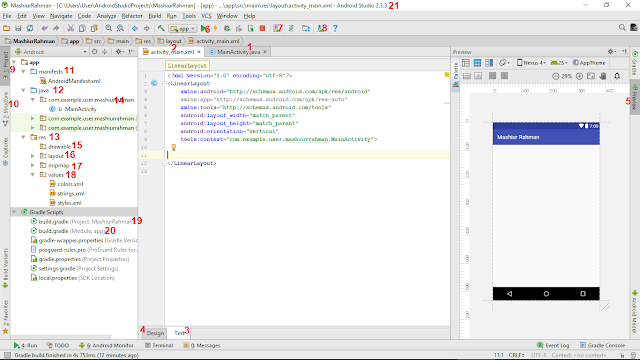
নতুন প্রোজেক্ট খোলার সাথেই যদি নিচের ছবির মত উইন্ড দেখা নাহ যায় তবে ৩ নম্বর বক্স এর পাশে যে Project লেখা আছে সেখানে ক্লিক করুন । ১ নম্বর বক্স এ দেখতে পাই MainActivity.java ( এখানে আমরা আমাদের জাভা কোডগুলো লিখবো ) । তার পাশেই আর একটি xml ফাইল আছে যার নাম activity_main.xml ( বক্স নং ২)। এই ফাইলটির উপর ক্লিক করুন ( এখানে অ্যাপের ডিজাইন করা হয়) ।
এখন ৪ নম্বর বক্সে আসি । এখানে ২ টা জিনিস দেখতে পাচ্ছেন, Design এবং Text। এর মানে আমরা অ্যাপের ডিজাইন ২ ভাবে করতে পারি ( ড্রাগ-ড্রপ এর মাধ্যমে , আবার হাতে লিখে – আমরা হাতে লিখেই শিখবো , ড্রাগ-ড্রপ দ্বারা অ্যাপ ডিজাইন করা মোটেও ভালো প্র্যাকটিস নয়)। এখন নিচের Text বাটনে ক্লিক করলে দেখতে পাবেন লেআউট ফাইলে ১টি টেক্সভিউ (Hello World) অটোমেটিক শো করছে । বাই ডিফ্লট যে লেআউট শো করেছে সেটি হল ConstraintLayout
টেক্সভিউটি মোবাইলে কোন অবস্থানে রয়েছে তা দেখতে ডান পাশের একদম উপরে Preview তে ক্লিক করুন ( যদি উপরের ছবি অনুযায়ী মোবাইল শো নাহ করে) ।
এখন আপনি যদি চান এখানে আপনার নাম দেখাবেন তাহলে <TextView ট্যাগের ভিতরে যেয়ে android:text=”Hello World!” যে লেখা আছে সেখান কেটে দিয়ে আপনার নাম লিখে দিন বা যা খুশি তাই । যেমন android:text=”Mashiur Rahman Sajib” । লেখাটি খুব ছোট । আমরা চাই লেখাটি আর একটু বড় দেখাক তাহলে android:text=”Mashiur Rahman Sajib” এর পর এন্টার প্রেস করে লিখে দিন android:textSize =”23sp” । আপনি যখন xml ফাইলে কোন কিছু লিখতে যাবেন তখন বারবার android:এই-সেই লেখার দরকার নেই । ধরুন আপনি textSize ট্যাগটি লিখবেন তাহলে শুধু t লিখলেই দেখবেন Android Studio আপনাকে সাজেশন দিবে t তে কোন কোন ট্যাগ আছে । সেখান থেকে textSize ট্যাগে ক্লিক করলেই চলে আসবে ।
তো আমাদের প্রথম কোড করা শেষ , এখন চলুন আমাদের এই এপ্লিকেশন মোবাইলে চালিয়ে দেখা যাক । এই এপ্লিকেশন গুলো মোবাইলে কিভাবে চলে তা দেখার জন্য Android Emulator নামে একটি ভার্চুয়াল মোবাইল আছে, আপনি চাইলে আপনার এই এপ্লিকেশন রিয়েল মোবাইলেও চালাতে পারেন । কিভাবে রিয়েল মোবাইলে আপনার এপ্লিকেশন চালাবেন তা দেখতে ক্লিক করুন –
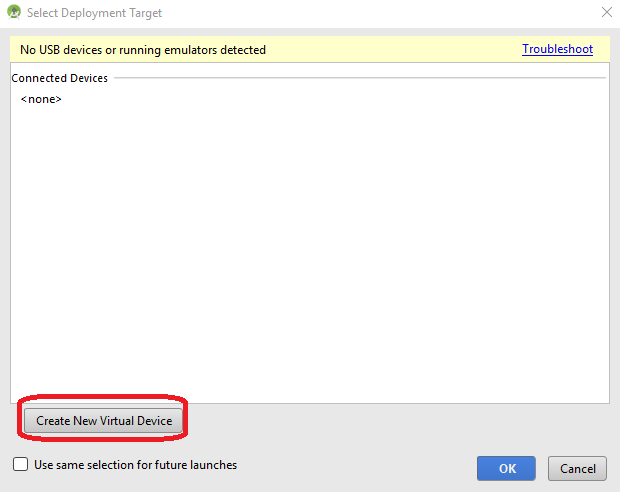
এখন আমরা যদি ভার্চুয়াল মোবাইলের মাধ্যমে এপ্লিকেশন চালাতে চাই তাহলে একদম উপরে ৫ নম্বর বক্সের রান বাটনে ক্লিক করুন । বাই ডিফল্ট এখানে কোন ডিভাইস থাকলে সেটিতে ক্লিক করে OK বাটনে প্রেস করুন । আর যদি কোন ভার্চুয়াল ডিভাইস তৈরি করা নাহ থাকে তবে চলুন আমরা আমাদের ইচ্ছামত একটি ভার্চুয়াল ডিভাইস তৈরি করে নেই ।
এর জন্য প্রথমে Create New Virtual Device বাটনে ক্লিক করুন –
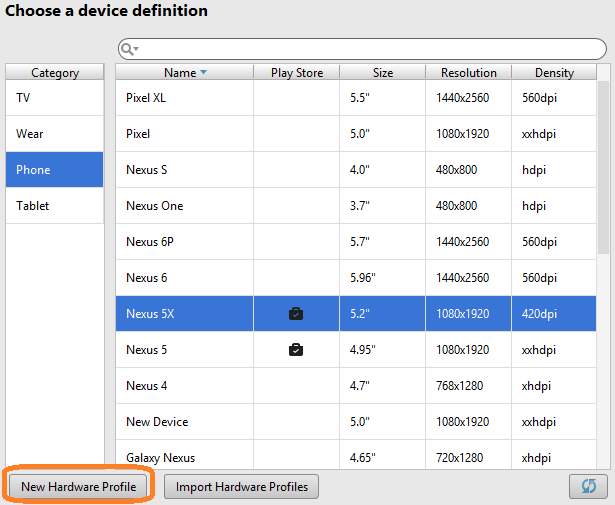
এখানে আপনি বিভিন্ন সাইজ ও রেজুলেশনের ফোন দেখতে পাচ্ছেন । এর ভিতর যে কোন একটি সিলেক্ট করুন ।
আপনি যদি চান যে আপনার মোবাইল এর সাইজ এর চেয়েও বড় হবে কিংবা কোন কিছুর সাথেই মিল হচ্ছে নাহ তবে New Hardware Profile এ ক্লিক করুন –
এখানে আপনি আপনার Device Name– চাইলে আপনি আপনার নামও বসিয়ে দিতে পারেন, Device Type – মোবাইলের সাইজ কত হবে, Screen – রেজুলেশন কেমন হবে , Memory – আমরা কমপক্ষে ২ জিবি অর্থাৎ ২০৪৮ এমবি জায়গা দিয়ে দিব, Input – প্রায় বেশীর ভাগ স্মার্টফোনেই ৩টি বাটন(back,home,menu) থাকে আপনি ভার্চুয়াল মোবাইলেও সেরকম চাইলে Has Hardware Buttons এ টিক দিয়ে রাখুন আবার আলাদা A-Z 0-9 কি-বোর্ড থাকে,এজন্য Has Hardware Keyboard টিক দিয়ে রাখুন । Supported device states – মোবাইলটা ২দিকেই ঘুরাতে চাই কিনা Cameras – ফ্রন্ট ব্যাক ২ ক্যামেরাই চাই কিনা Sensors – মোবাইলের সাথে থাকা সেন্সর গুলো ইউজ করতে চাই কিনা Default Skin –
এগুলো সেট করে Finish বাটনে ক্লিক করুন । তাহলে দেখবেন এখন অনেকগুলো মোবাইলের যে লিস্ট ছিল সেখানে আপনার তৈরি ওই মোবাইলের নামও চলে এসেছে । এরপর সেটি সিলেক্ট করে Next বাটনে ক্লিক করুন ।
এখন আপনি আপনার মোবাইলে কোন অপারেটিং সিস্টেম চালাতে চান সেটি ডাউনলোড করে নিন । বাই ডিফল্ট যদি কোন অপারেটিং সিস্টেম ডাউনলোড করা থাকে তবে দেখবেন তার পাশে Download শব্দটি লেখা নেই । সেটি পছন্দ নাহ হলে এবং আপনাকে যে Recommended অপারেটিং সিস্টেম গুলো বলা হয়েছে সেগুলো একটিও যদি পছন্দ নাহ হয় তবে x86 Images থেকে কোন অপারেটিং সিস্টেম ডাউনলোড করে নিন ।
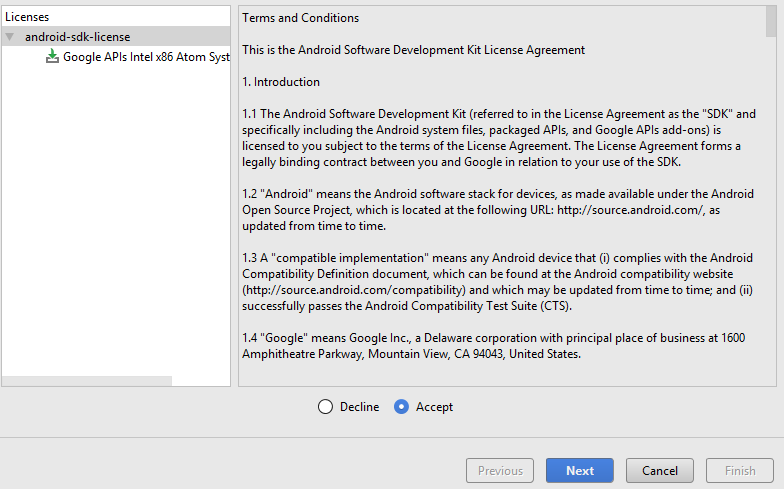
তাহলে দেখা যাক আমরা অপারেটিং সিস্টেম কিভাবে ডাউনলোড করবো । প্রথমে ডাউনলোড বাটনে ক্লিক করুন -> এরপর আপনাকে ওদের লাইসেন্স Accept করার কথা বলবে,
সেখানে ক্লিক করে Next বাটনে ক্লিক করুন । ডাউনলোড হয়ে আপনা-আপনি সেটি ইন্সটল হয়ে যাবে, একটু সময় লাগবে , অপেক্ষা করুন ।
এরপর আপনার পছন্দের অপারেটিং সিস্টেম সিলেক্ট করে Next বাটনে ক্লিক করুন –
এখানে আপনি চাইলে আবার আপনার সিস্টেম চেঞ্জ করতে পারবেন । এখানে , Startup orientation – এখানে Portrait ও Landscape ২ টি অপশন আছে , যখন মোবাইল ওপেন হবে তখন সেটি সোজা নাকি বাঁকানো অবস্থায় ওপেন হবে । Show Advance Settings – এ গেলে আরো কিছু অপশন পাবেন , যেমন –
Camera – ভার্চুয়ালি মোবাইল দিয়ে যখন আপনি পিক তুলতে যাবেন তখন একটি ব্লাক ব্যাকগ্রাউন্ড ওপেন হয় । এখন যদি ফ্রন্ট ও ব্যাক ক্যামেরায় যদি চান ল্যাপটপ এর ওয়েবক্যাম দিয়ে পিক তুলতে তবে webcam() অপশন সিলেক্ট করে নিন । Network – মোবাইলের নেটওয়ার্ক কেমন হবে সেটি Device Frame – মোবাইলটা দেখতে রিয়েল মোবাইলের মত দেখাবে কিনা নাকি শুধু স্ক্রিন
এরপর Finish বাটনে ক্লিক করুন ।
এখন দেখুন আপনি আপনার এপ্লিকেশন রান করার সময় যে ভার্চুয়াল ডিভাইস দেখতে পাচ্ছেন সেটি সিলেক্ট করে ok বাটনে ক্লিক করুন ।
একটু অপেক্ষা করুন । এখন নিশ্চয়ই আপনার নাম দেখতে পাচ্ছেন 🙂
আপনি যেহেতু একদম নতুন তাই এই পর্বটি শুধু একবার চোখ বুলিয়ে যান 😊
আপনি ভার্চুয়াল মোবাইল দিয়ে ফোনকল বাদে সবকিছু করতে পারবেন । এটি রিয়েল মোবাইলের মতই । যদি ফোনকলের ফ্রি সফটওয়্যার নামিয়ে নেন তবে ফোনকলও দিতে পারবেন । তাই কাউকে মেইল পাঠানো কিংবা কোন স্পর্শকাতর বিষয়ে অবশ্যই দৃষ্টি রাখবেন ।
প্রথমেই আমরা একটি অ্যাপের ডিজাইন করা শেখবো । তো আপনার প্রোজেক্ট এর activity_main.xml এ চলে আসুন ।
Tag প্রথমেই ট্যাগ নামক শব্দটির সাথে চলুন পরিচিত হওয়া যাক । HTML এর মত XML এও আমরা ট্যাগ ব্যাবহার করে থাকি , একটি ট্যাগ দেখতে ঠিক এরকম < tag_name > </ tag_name > কিংবা < tag_name /> < tag_name এখানে যে লেখাগুলো দেখেবন সেগুলো হল এই ট্যাগের বৈশিষ্ট অর্থাৎ এই উপাদানটি দেখতে কিংবা আচারনে কিরকম হবে > আর এখানে যে লেখাগুলো লেখা হয় সেগুলো এই ট্যাগের বাচ্চা-কাচ্চা অর্থাৎ এই ট্যাগের আন্ডারে অন্য কোন উপাদান </ tag_name >
XML আমরা যে ল্যাঙ্গুয়েজ দ্বারা অ্যাপের ডিজাইন করি সেটি হল Xml । xmlফাইলে গেলে কিছু টেক্স অটোমেটিক দেয়া আছে দেখতে পাবেন , এগুলো আপাতত বুঝার মত কিছু নাহ , শুধু জেনে রাখা ভালো । তাই একবার চোখ বুলিয়ে রাখুন 😊
<?xml version="1.0" encoding="utf-8"?>
একদম উপরে দেয়া এই লাইনটি দ্বারা বুঝায় আমরা যে Xml দিয়ে লিখবো সেটি হল Xml এর 1.0 ভার্সন । এবং এই Xml যখন বাইটকোডে রূপান্তরিত হবে তখন utf-8 এর ফন্ট দ্বারা রূপান্তরিত হবে ।
এরপর যে <android.support.constraint.ConstraintLayout
দেখাচ্ছে এটা হল আমাদের অ্যাপের রুট লেআউট ফাইল, ইচ্ছা হলে অন্যান্য আরো লেআউট ফাইল নিয়ে আমরা কাজ করতে পারবো, এই লেআউট এর ভিতরেই আমরা আরো অনেক লেআউট ব্যাবহার করতে পারবো ।
এরপর আমরা যে লাইনটা দেখতে পাচ্ছি এটার মানে হল আমরা যে Xml ডকুমেন্টটা লিখবো তা অ্যান্ড্রোয়েড এর জন্য ব্যাবহার করবো ।
xmlns:tools="http://schemas.android.com/tools"
এর মানে আমরা যে অ্যাপটা বিল্ড করতেছি তা অ্যান্ড্রোয়েড স্টূডিও এর টুলস ব্যাবহার করার মাধ্যমে ।
এরপর নিচে যা লেখা আছে এইগুলোও একবার চোখ বুলিয়ে যান । পরে নিজেই বুঝতে পারবেন । আপনি অ্যান্ড্রোয়েড স্টূডিও তে বিগেনার হয়ে থাকলে শুরুতেই মাথা ঘামানোর প্রয়োজন নেই 😊
Object TextView , EditText , Button , ImageView সহ সকল ধরনের ভিউ নিয়ে যখন আমরা কাজ করবো তখন সেই সব ভিউ এর অব্জেক্ট তৈরি করে নিতে হবে এক্টিভিটি ক্লাসে । অ্যান্ড্রোয়েড লাইব্রেরী তে এইসকল ভিউ এর আচরন কি রকম হবে , কোন ম্যাথড কি রকম কাজ করবে তার সকল কিছু TextView , EditTex ক্লাসে তৈরি করা আছে । xml ফাইলে আমরা প্রতিটি ভিউ এর জন্য আইডি দিয়ে দিব । এরপর এক্টিভিটি ক্লাসে অব্জেক্ট তৈরি করে সেই অব্জেক্ট এর সাথে ভিউ এর আইডি যোগ করে দিব । এর ফলে আমরা এক্টিভিটি ক্লাসের অব্জেক্ট নিয়ে যা করবো তার প্রতিফলন ওইসব ভিউ তে ঘটবে ।
আপাতত জেনে রাখুন । পরে অনেক বার প্রয়োজন পড়বে । তখন আবার দেখে নিবেন 😊
চলুন Android Studio এর সাথে হালকা পরিচিত হয়ে নেয়া যাক –
1 – এ রকম ফাইলগুলো হল Activity Class । একটি অ্যাপে অসংখ্য Activity Class থাকে । Activity হল ধরুন পত্রিকা হল একটি অ্যাপ । তাহলে পত্রিকার প্রতিটি পাতা হল এক একটি Activity । প্রোগ্রামিং কোডগুলো আমরা Activity Class এ লিখে থাকি ।
2 – এখানে অ্যাপের ডিজাইন করা হয় । এগুলোকে বলে layout ফাইল । ডিজাইন করা হয় xml এর সাহায্যে । ডিজাইন ২ ভাবে করা যায় – ৩ ও ৪ নম্বরে দেখি
3 – প্রতিটি ট্যাগ হাতে লেখার মাধ্যমে ডিজাইন করা যায় । মাঝখানে যে লেখাগুলো দেখতে পাচ্ছেন এগুলই xml লেখা এবং এভাবেই হাতে হাতে লিখবো
4 – ড্রাগ-ড্রপ এর মাধ্যমে ডিজাইন করা যায় । ডিজাইন এ ক্লিক করলেই দেখতে পাবেন Palette এ অসংখ্য ভিউ আছে Like – TextView , Button , CheckBox । এগুলোর উপর ক্লিক করে টেনে মোবাইলের স্ক্রিনের ভিতর নিয়ে আসলেই সেটা সেখানে সেট হয়ে যাবে । তবে এরকম ভাবে ডিজাইন করতে গেলে অনেক অসুবিধা আছে । তাই আমরা হাতে লিখেই ডিজাইন করবো
5 – ডিজাইন করার সময় সাথে সাথে যদি দেখতে চান মোবাইলে কিভাবে পরিবর্তন হচ্ছে তবে Preview তে ক্লিক করুন
6 – এর পাশে যে সবুজ রঙের বাটনটি দেখতে পাচ্ছেন । এটির মাধ্যমে অ্যাপ রান করা হয় । আমাদের অ্যাপ মোবাইলে কিভাবে আচরন করে তা দেখবো এটি তে ক্লিক করার মাধ্যমে
7 – AVD Manager ( Android Virtual Device Manager ) । অ্যাপ ২ ভাবে রান করে দেখা যায় । রিয়েল মোবাইল অর্থাৎ আপনার কাছে থাকা স্মার্টফোনের সাহায্যে আবার এটির মাধ্যমে ভার্চুয়ালি একটি স্মার্টফোন তৈরি করার মাধ্যমে । আপনি আপনার তৈরি এই ভার্চুয়ালি মোবাইল আপনার ইচ্ছামত সকল সেটিংস চেঞ্জ করতে পারবেন যখন খুশী তখন । মনে রাখবেন এই ভার্চুয়াল মোবাইল রিয়েল ডিভাইস এর মতই । শুধু এখানে ব্যালেন্স নেই বলে আপনি ফোন দিতে পারবেন নাহ । এছাড়া রিয়েল ডিভাইস দিয়ে আপনি যা করেন তার সবকিছুই করা যাবে ।
8 – Android Studio এর সকল সেটিংস ও যে সকল লাইব্রেরী দরকার তা এখানে পাওয়া যাবে
9 – আমাদের অ্যাপে যত রকমের ফাইল আছে তার লিস্ট দেখা যাবে এখানে
10 – প্রতিটি ফাইলের ভিতর কি কি আছে তা দেখতে ফাইলটি ওপেন করে এই Structure এ ক্লিক করুন
৯ নং এর পাশেই দেখুন Android লেখা একটি বাটন আছে । ওখানে Android নাহ থেকে অন্য কিছু থাকলে বাটনের উপর ক্লিক করে Android লেখা চাপুন । ফলে আপনি app ও Gradle Scripts দেখতে পাবেন app এ ক্লিক করলে দেখতে পাবেন ৩টি ফোল্ডার – manifests , java এবং res
11 – manifests এর ভিতরে থাকে ১টি xml ফাইল যার নাম – AndroidManifest.xml । এখানে অ্যাপের প্রধান সকল গুনগুলো দেয়া থাকে । অ্যাপের নাম, আইকন, থিম, কি কি Activity Class আছে এসব সহ আরো কিছু, নিজেই দেখে নিন
12 – java এর ভিতরেও ৩টি ফোল্ডার পাবেন । আপাতত আমরা শুধু ১ম ফোল্ডার টি নিয়ে কাজ করবো । ১৪ নম্বর যে দেয়া আছে সেটি নিয়ে । এখানে সকল Activity Class এর লিস্ট থাকে
13 – res এর ভিতর সকল রিসোর্স উপাদানগুলো থাকে থাকে । এর ভিতরে ১৫,১৬,১৭,১৮ ফাইলগুলো থাকে
15 – ধরুন আমরা একটা বাটন ডিজাইন করে সেটি অনেক জায়গায় ব্যাবহার করতে চাই । তাহলে সেই ডিজাইন এই ফাইলের ভিতরে রেখে আমরা ওইসব জায়গায় ফাইলটি কল করলেই হবে । এছাড়া ভিডিও,অডিও রাখা হয় এই ফোল্ডার এর ভিতর । ইমেজও রাখা যায় তবে ইমেজ রাখতে ১৭ নম্বর ফাইলটি ব্যাবহার করা ভালো
16 – অ্যাপের ভিতর সকল লেআউট ফাইলের লিস্ট এখানে থাকে । Activity Class ছাড়াই শুধুমাত্র লেআউট ফাইল খুলতে চাইলে layout এর উপর রাইট ক্লিক করে খুলতে হবে ।
17 – এখানে অ্যাপে ব্যাবহার করা সকল ইমেজ ফাইল রাখা হয় , ইমেজের নামের ভিতর স্পেস কিংবা প্রথমে সংখ্যা রাখবেন নাহ
18 – values এর ভিতরে ৩ টি ফাইল থাকে । colors.xml , strings.xml , styles.xml । colors.xml এর ভিতর আমরা সকল রঙ এর কোড ও নাম লিখে দিয়ে , সেই নামগুলো xml এর ভিতর ব্যাবহার করবো । কোডের ভিতর কিংবা লেআউট ফাইলের ভিতর আমরা যত string ব্যাবহার করবো সেসব strings.xml এ লিখে দিব । ডায়রেক্টও লেখা যায় তবে সেটা ভালো প্র্যাকটিস নয় । styles.xml এর ভিতর আমরা একটা ভিউ এর স্টাইল লিখে রেখে সেই স্টাইল ভিউকে কল করে থাকি । আমরা সাধারণত xml ফাইলেই ডিজাইন করে থাকি , তো কিছু কমন ডিজাইন থাকে যা বার বার লিখতে হয় । এই সমস্যা থেকে রেহাই পেতে, ওই সব ডিজাইন এখানে লিখে দেয়া হয় । প্র্যাকটিস করলেই আস্তে আস্তে সবগুলো বুঝে যাবেন
19 – এটি প্রোজেক্ট গ্রেডেল ফাইল । প্রোজেক্ট এর ভিতর অনেক সময় অনেক লাইব্রেরী এড করতে হয় , সেগুলো এখানে এড করে নিব , এখানে তেমন একটা কাজ নেই বললেই চলে
20 – এটি অ্যাপ লেভেল গ্রেডেল ফাইল । অ্যাপের সকল প্রয়োজনীয় লাইব্রেরী সহ অ্যাপের ভার্সন ও মিনিমাম কোন মোবাইলে অপারেটিং সিস্টেম এই অ্যাপটি চালাতে পারবে, অ্যাপের টার্গেট মোবাইল অপারেটিং সিস্টেম কোনটা এগুলো লিখে দেয়া হয় । এখানে এটা-অটা নিয়ে প্রায়ই আমাদের কাজ করতে হবে
21 – কম্পিউটারের কোথায় অ্যাপের ফাইলটি আছে তার লোকেশন এটি
এছাড়াও আরো বহুত কিছু আছে যা আস্তে আস্তে আমরা প্রয়োজনের সময় দেখে নিব , তো মোটামুটি Android Studio সম্পর্কে একটা হালকা ধারনা হয়ে গেছে আশা করি








 OLEETECH