laravel crud tutorial

প্রথমে লারাভেল এর project তৈরী করতে হবে। এ জন্য কমান্ড প্রম্প এ blog নাম এ একটি প্রজেক্ট তৈরী করার জন্য এই কোড টি লিখে এন্টার করি।

composer create-project --prefer-dist laravel/laravel blog

এবার আমাদের ডাটাবেস এর কনফিগার অনুযায়ী আমাদের প্রজেক্ট এর মেইন ফোল্ডার এ .env ফাইল এ ডাটাবেস এর ইনফরমেশন দিতে হবে যেমন আমার ডাটাবেস এর ইউআরএল ,উজারনেম,পাসওয়ার্ড,,ডাটাবেস নাম ইত্যাদি।

DB_CONNECTION=mysql
DB_HOST=127.0.0.1
DB_PORT=3306
DB_DATABASE=test
DB_USERNAME=root
DB_PASSWORD=root

Route.php

Route::resource('/student', 'StudentController');

Create a student controller ,model,migration File

php artisan make:model Student -mcr

Student.php

<?php

namespace App;

use Illuminate\Database\Eloquent\Model;

class Student extends Model
{
    //
    protected $table = "students";
    protected $fillable = ['name','roll','class'];

}

StudentController.php

<?php

namespace App\Http\Controllers;

use App\Student;
use Illuminate\Http\Request;

class StudentController extends Controller
{
    /**
     * Display a listing of the resource.
     *
     * @return \Illuminate\Http\Response
     */
    public function index()
    {
        //

        $data = Student::all();
        return view('student.index',compact('data'));
    }

    /**
     * Show the form for creating a new resource.
     *
     * @return \Illuminate\Http\Response
     */
    public function create()
    {
        //
        return view ('student.save');
    }

    /**
     * Store a newly created resource in storage.
     *
     * @param  \Illuminate\Http\Request  $request
     * @return \Illuminate\Http\Response
     */
    public function store(Request $request)
    {
        //
        $validatedData = $request->validate([
            'name'=>'required|max:255',
            'roll'=>'required',
            'class'=>'required'
        ]);
        $show = Student::create($validatedData);
        return redirect('/student')->with('successs','Student Added');
    }

    /**
     * Display the specified resource.
     *
     * @param  \App\Student  $student
     * @return \Illuminate\Http\Response
     */
    public function show(Student $student)
    {
        //
    }

    /**
     * Show the form for editing the specified resource.
     *
     * @param  \App\Student  $student
     * @return \Illuminate\Http\Response
     */
    public function edit($id)
    {
        //
        $studentedit = Student::findOrFail($id);
        return view('student.edit')->with('data',$studentedit);
    }

    /**
     * Update the specified resource in storage.
     *
     * @param  \Illuminate\Http\Request  $request
     * @param  \App\Student  $student
     * @return \Illuminate\Http\Response
     */
    public function update(Request $request,  $id)
    {
        //
        $validatedData = $request->validate([
            'name'=>'required',
            'roll'=>'required',
            'class'=>'required'
        ]);

        $studentupdate = Student::whereId($id)->update($validatedData);
        return redirect('/student')->with('success','Data is successfully updated');
    }

    /**
     * Remove the specified resource from storage.
     *
     * @param  \App\Student  $student
     * @return \Illuminate\Http\Response
     */
    public function destroy( $id)
    {
        //

        $deleteid = Student::findOrFail( $id);
        $deleteid->delete();
        return redirect('/student')->with('success','Data is successfully Deleted');

    }
}

Migration File

<?php

use Illuminate\Database\Migrations\Migration;
use Illuminate\Database\Schema\Blueprint;
use Illuminate\Support\Facades\Schema;

class CreateStudentsTable extends Migration
{
    /**
     * Run the migrations.
     *
     * @return void
     */
    public function up()
    {
        Schema::create('students', function (Blueprint $table) {
            $table->id();
            $table->string('name');
            $table->string('roll');
            $table->string('class');
            $table->timestamps();
        });
    }

    /**
     * Reverse the migrations.
     *
     * @return void
     */
    public function down()
    {
        Schema::dropIfExists('students');
    }
}

Layout View File under student folder resource/view/student/

layout.blade.php

<!DOCTYPE html>
<html lang="en">
<head>
    <meta charset="UTF-8">
    <meta name="viewport" content="width=device-width, initial-scale=1.0">
    <meta http-equiv="X-UA-Compatible" content="ie=edge">
    <title>Document</title>
    <link rel="stylesheet" href="https://maxcdn.bootstrapcdn.com/bootstrap/4.4.1/css/bootstrap.min.css">

</head>
<body>
    <div class="container">
        @yield('content')
    </div>
</body>
</html>

index.blade.php

@extends('student.layout')
@section('content')
<div class="row">
<a href="/student/create">Aadd Students</a>
    <div class="col-md-12 margin-tb">
            <table class="table-responsive table-bordered">
                <thead>
                    <th>Id</th>
                    <th>Name</th>
                    <th>Roll</th>
                    <th>Class</th>

                    <th>aAction</th>

                </thead>
                <tbody>
                    @foreach ($data as $row)
                    <tr><td>{{$row->id}}</td>
                    <td>{{$row->name}}</td>
                    <td>{{$row->roll}}</td>
                    <td>{{$row->class}}</td>

                    <td><a href="{{route('student.edit',$row->id)}}">Edit</a></td>
                    <td> <form action="{{route('student.destroy',$row->id)}}" method="post">
                        @csrf
                        @method('DELETE')                        <button class="btn btn-danger" type="submit">Delete</button>
                    </form>
                    </td>
                   </tr>
                    @endforeach
                </tbody>
            </table>
    </div>
</div>
@endsection

save.blade.php

@extends ('student.layout')
@section('content')
<div class="card-body">
    @if ($errors->any())
      <div class="alert alert-danger">
        <ul>
            @foreach ($errors->all() as $error)
              <li>{{ $error }}</li>
            @endforeach
        </ul>
      </div><br />
    @endif
<form action="{{route('student.store')}}" method="post">
    @csrf
    <div class="form-group">
              @csrf
              <label for="name">Name:</label>
              <input type="text" id="name" class="form-control" name="name"/>
          </div>
          <div class="form-group">
              <label for="roll">Roll :</label>
              <input type="text" id='roll' class="form-control" name="roll"/>
          </div>
         <div class="form-group">
         <label for="roll">Class :</label>
              <input type="text" id='roll' class="form-control" name="class"/>
         </div>
         <button type="submit" class="btn btn-primary">Add Data</button>
      </form>
</form>
@endsection

edit.blade.php

@extends('student.layout')
@section('content')
<div class="row">
    <div class="col-md-12">
    @if ($errors->any())
      <div class="alert alert-danger">
        <ul>
            @foreach ($errors->all() as $error)
              <li>{{ $error }}</li>
            @endforeach
        </ul>
      </div><br />
    @endif
        <form action="{{route('student.update',$data->id)}}" method="post">
            @csrf
            @method('PATCH')
            <div class="form-group">
                <label for="name">Name</label>
                <input id="name" class="form-control" type="text" name="name" value="{{$data->name}}">
            </div>
            <div class="form-group">
                <label for="roll">Roll</label>
                <input id="roll" class="form-control" type="text" name="roll" value="{{$data->roll}}">
            </div>
            <div class="form-group">
                <label for="class">Class</label>
                <input id="class" class="form-control" type="text" name="class" value="{{$data->class}}">
            </div>
            <button class="btn btn-primary" type="submit">Update</button>
        </form>
    </div>
</div>
@endsection

Laravel Reference By Oleetech

Laravel Database Column Datatype

Command	Description
$table->bigIncrements('id');
$table->bigInteger('votes');	  BIGINT equivalent for the database.
$table->binary('data');	          BLOB equivalent for the database.
$table->boolean('confirmed');	  BOOLEAN equivalent for the database.
$table->char('name', 4);	  CHAR equivalent with a length.
$table->date('created_at');	  DATE equivalent for the database.
$table->dateTime('created_at');	  DATETIME equivalent for the database.
$table->dateTimeTz('created_at'); DATETIME (with timezone) for  database.
$table->decimal('amount', 5, 2);  DECIMAL  with a precision and scale.
$table->double('column', 15, 8);  DOUBLE equivalent with precision, 15 digits in total and 8 after the decimal point.
$table->enum('choices', ['foo', 'bar']);
ENUM equivalent for the database.
$table->float('amount');	FLOAT equivalent for the database.
$table->increments('id');	Incrementing ID (primary key) using a “UNSIGNED INTEGER” equivalent.
$table->integer('votes');	INTEGER equivalent for the database.
$table->ipAddress('visitor');	IP address equivalent for the database.
$table->json('options');	JSON equivalent for the database.
$table->jsonb('options');	JSONB equivalent for the database.
$table->longText('description');	LONGTEXT equivalent for the database.
$table->macAddress('device');	MAC address equivalent for the database.
$table->mediumInteger('numbers');	MEDIUMINT equivalent for the database.
$table->mediumText('description');	MEDIUMTEXT equivalent for the database.
$table->morphs('taggable');	Adds INTEGER taggable_id and STRINGtaggable_type.
$table->nullableTimestamps();	Same as timestamps(), except allows NULLs.
$table->rememberToken();	Adds remember_token as VARCHAR(100) NULL.
$table->smallInteger('votes');	SMALLINT equivalent for the database.
$table->softDeletes();	Adds deleted_at column for soft deletes.
$table->string('email');	VARCHAR equivalent column.
$table->string('name', 100);	VARCHAR equivalent with a length.
$table->text('description');	TEXT equivalent for the database.
$table->time('sunrise');	TIME equivalent for the database.
$table->timeTz('sunrise');	TIME (with timezone) equivalent for the database.
$table->tinyInteger('numbers');	TINYINT equivalent for the database.
$table->timestamp('added_on');	TIMESTAMP equivalent for the database.
$table->timestampTz('added_on');	TIMESTAMP (with timezone) equivalent for the database.
$table->timestamps();	Adds created_at and updated_at columns.
$table->uuid('id');	UUID equivalent for the database.

Reactjs বাংলা টিউটোরিয়াল

HTMLTOREACT CONVERT

Reactjs এপ্লিকেশন সেটআপ

  • ১. প্রথমে কম্পিউটার এ node.js এর recomended ভার্সন ইনস্টল করার পর cmd এডমিনিস্ট্রেটর মোড এ ওপেন করে node -v দিয়ে নোড ভার্সন ও npm -v দিয়ে npm এর ভার্সন চেক করে দেখতে হবে যে nodejs ও npm ইনস্টল সঠিক ভাবে হয়েছে কিনা।
  • ২.যে ফোল্ডার এ প্রজেক্ট করবো সেই ফোল্ডার এ cmd ওপেন করে npm cache clean –force টাইপ করে ক্যাশ পরিষ্কার করতে হবে।
  • ৩. ইন্টারনেট সংযোগ সহকারে cmd তে npm install -g create-react-app টাইপ করে এন্টার করে কিছুক্ষন অপেক্ষা করবো সাকসেস হয় পর্যন্ত।
  • ৪. এবার ইটা টাইপ করে এন্টার করবো npx create-react-app myfirstreact এটাও কছুক্ষন সময় নেবে অপেক্ষা করবো যতক্ষণ না happy হ্যাকিং লেখা আসে.
  • ৫. ডিরেক্টরি তে ঢুকার জন্য cd myfirstreact লিখবো এখানে আমরা আগের লাইন এ প্রজেক্ট নাম যা দিয়েছে তাই দিতে হবে
  • ৬. এবার npm start লিখে এন্টার করলে কিছুক্ষন এর মধ্যে ডেভেলপমেন্ট সার্ভার চালু হয়ে রিএক্ট আপা ওপেন হবে।

Reactjs এ কম্পোনেন্ট : মনেকরি html বাটন একটি snippet যা লিখলে ওয়েবপেজ এ একটি বাটন তৈরী হয়। অনেক সময় অনেকগুলো বাটন লাগে এবং প্রয়োজন অনুযায়ী কাস্টোমাইজ বেবহার করতে হয়। reactjs এ প্রত্যেকটি কোড স্নিপেট আলাদা আলাদা ক্লাস ফাইল এ লিখে সেগুলো পুনরায় কাস্টোমাইজ করে বেবহার এবং তা অনেক গুছানো। যেমন আপনার প্রজেক্ট এ বিভিন্ন স্টাইল এর বাটন আছে কোনও টা সিম্পল বাটন কোনও টা আইকন যুক্ত বাটন আবার কোনও টা সোশ্যাল বাটন আবার মনে করেন সোশ্যাল বাটন কোনও টা বড় আবার কোনও টা সার্কেল স্টাইল এখন এই কোড গুলো আপনার প্রজেক্ট এ সাজাতে চান তখন আপনার অনেক পদ্ধতি পারে কিন্তু আপনি যদি প্রত্যেকটি স্টাইল এর বাটনকে ক্লাস ফাইল এ রেখে কাজ করেন তাহলে তা বুঝতে ও ব্যবহার করা সহজ।

Reactjs ক্লাস কম্পোনেন্ট :: src ফোল্ডার এ আমরা কম্পোনেন্ট গুলো রাখবো সাজিয়ে রাখার জন্য আমরা কম্পোনেন্ট গুলোকে বিভিন্ন ফোল্ডার এ গুছিয়ে রাখবো যেমন আমি src ফোল্ডার এ Component নাম এ একটি ফোল্ডার তৈরী করে তার মধ্যে Hello.jsনাম এ একটি ফাইল তৈরী করে তার মধ্যে এই কোড গুলো লিখলাম

import React, {Component} from 'react';
class Hello extends React.Component {

    render (){

        return (

            <div class="mydiv">
                <h1>Hey I Am Gsm Ashik</h1>
            </div>
        );
    }
}

export default Hello;

এবার app.js ফাইল এ এভাবে লিখলাম।

import React from 'react';
import Hello from './Component/Hello';

function App() {
  return (
 <Hello/>
  );
}

export default App;

Reactjs এ আমরা ক্লাস এর পাশাপাশি ফাঙ্কশন এর মাধ্যমে কম্পোনেন্ট বেবহার করতে পারি। আমরা Hello.js নাম একটি ফাইল বানিয়ে তার মধ্যে নিচের কোড লিখি যা একটি ফাঙ্কশন কম্পোনেন্ট

Welcome.js এর ফাইলটি এরকম হবে 
import React,{Component} from 'react';
function Welcome(){
    return <h1>Hello Function</h1>
}
export default Welcome;

এবার App.js ফাইল এ তা ইম্পোর্ট করে বেবহার করি

App.js এর ফাইলটি এরকম হবে 
import React from 'react';
import Welcome from './Component/FunctionalComponent';
function App() {
  return (

  <Welcome></Welcome>
    
  );
}

export default App;

Reactjs এ props : মনে করো একটি বাটন কম্পোনেন্ট বানালে এবং যখন এই কম্পোনেন্ট একাধিকবার ব্যবহার করবে তখন এই কম্পোনেন্ট পরিবর্তন করা লাগতে পারে কখনো বাটন এ লিখা থাকবে Add Data , আবার কখনো লিখা থাকবে delete data অনেক পরিবর্তন নিয়ে কাজ করার জন্য props বেবহার করা হয়।

ক্লাস কম্পোনেন্ট এর props এর বেবহার :

// Hello.js এর ফাইলটি এরকম হবে 
import React,{Component} from  'react';

class Hello extends React.Component {

    render (){
        return (
        <h1>Gsm Ashik Roll Number Is {this.props.roll}</h1>
        );
    }
}

export default Hello;
// App.js এর ফাইলটি এরকম হবে 
import React from 'react';
import Hello from './Component/Hello';

function App() {
  return (
  <Hello roll="14"></Hello>
  );
}
export default App;

Functional কম্পোনেন্ট এর props এর বেবহার :

// Welcome.js এর ফাইলটি এরকম হবে 
import React,{Component} from 'react';
function Welcome(props){
return <h1>Hello Function {props.color}</h1>
}
export default Welcome;
// App.js এর ফাইলটি এরকম হবে 

iimport React from 'react';
mport Welcome from './Component/FunctionalComponent';

function App() {
  return (

  <Welcome color="#454414"></Welcome>
 
  );
}

export default App;

Reactjs এ State : এর আগে আমরা কম্পোনেন্ট এর ভ্যালু পরিবর্তন করার জন্য props বেবহার করেছি যা আমাদের App.js ফাইল এ কম্পোনেন্টটি বেবহার করার সময় html এট্রিবিউট এর মতো props এর নাম লিখে তার ভ্যালু লিখতে হতো অনেক সময় আমাদের পূর্বে নির্ধারিত স্ট্রিং এরে জেসন বা অন্য কোনো ডাটা আমাদের কম্পোনেন্ট এর মধ্যে আগে থেকে স্টোরে করে রাখা লাগতে পারে যার জন্য আমরা state বেবহার করবো।

ক্লাস কম্পোনেন্ট এ state এর বেবহার :

// Hello.js এর ফাইলটি এরকম হবে 
import React,{Component} from  'react';

class Hello extends React.Component {
constructor(){
    super();
    this.state={"name":"Bangladesh"};
}
    render (){
        return (
        <h1>My Country Is {this.state.name}</h1>
        );
    }
}
export default Hello;
//App.js এর ফাইলটি এরকম হবে 
import React from 'react';
import Hello from './Component/Hello';

function App() {
  return (

  <Hello></Hello>
 
  );
}
export default App;

ক্লাস কম্পোনেন্ট এ ক্লিক ইভেন্ট যোগ্যরা এবং এলার্ট শো করা :

// Hello.js এর ফাইলটি এরকম হবে 
import React,{Component} from  'react';
class Hello extends React.Component {
     shut(){
        alert("Hello I Am Clicked");
    }
    render (){
        return (
        <button onClick={this.shut} >Ckickme </button>
        );
    }
}
export default Hello;
import React, { Component } from 'react';

class Hello extends Component {
    constructor(props){
        super();
        this.state= {name:'olee ahmmed'};
        this.handlechange = this.handlechange.bind(this);
    }
  
    handlechange (){
        this.setState({name:'Gsm'});
    }
    render() {
        return (
            <div>
                <h1 >Hello World {this.state.name} {this.props.profession}</h1>
                <button onClick={this.handlechange} >Ckickme </button>
            </div>
        );
    }
}

export default Hello;
//App.js এর ফাইলটি এরকম হবে 
import React from 'react';
import Hello from './Component/Hello';

function App() {
  return (

  <Hello></Hello>
 
  );
}
export default App;

Functional কম্পোনেন্ট এ ক্লিক ইভেন্ট যোগ্যরা এবং এলার্ট শো করা :

import React,{Component} from 'react';
function shut(){
    alert("He I Am Clicked");
}
function Welcome(props){
return <button onClick={shut}>Clickme</button>
}
export default Welcome;
import React from 'react';
import Welcome from './Component/FunctionalComponent';


function App() {
  return (
  
 <Welcome></Welcome>
  );
}

export default App;

reactjs এ একটা কম্পোনেন্ট এর মধ্যে আরেকটা কম্পোনেন্ট রাখতে :

 //এটা Sidebar.js ফাইল 
<div>
{this.props.children}
            </div>
//এটা Example.js ফাইল  এ Sidebar ইম্পোর্ট করার পর  
<Sidebar>
<Footer></Footer>
</Sidebar>            

React.js এ মাল্টিপল ইনপুট হ্যান্ডেল করা

import React, { Component } from 'react';
class Login extends Component {

    constructor () {
      super();
      this.state = {
        email: '',
        password: ''
      };
      this.handleChange = this.handleChange.bind(this);
    }
  
    handleChange (evt) {
      // check it out: we get the evt.target.name (which will be either "email" or "password")
      // and use it to target the key on our `state` object with the same name, using bracket syntax
      this.setState({ [evt.target.name]: evt.target.value });
    }
  
    render () {
      return (
        <form>
 <h1>{this.state.email}</h1>
 <h1>{this.state.password}</h1>
          <label>Email</label>
          <input type="text" name="email" onChange={this.handleChange} />
  
          <label>Password</label>
          <input type="password" name="password" onChange={this.handleChange} />
  
        </form>
      );
    }
  }

  export default Login;
  

reactjs এ css মাল্টিপল classname যেভাবে লিখবো :

  <div className={"card" + (this.props.plain ? " card-plain" : "")}>

ReactJs Textarea Example :

class EssayForm extends React.Component {
  constructor(props) {
    super(props);
    this.state = {
      value: 'Please write an essay about your favorite DOM element.'
    };

    this.handleChange = this.handleChange.bind(this);
    this.handleSubmit = this.handleSubmit.bind(this);
  }

  handleChange(event) {
    this.setState({value: event.target.value});
  }

  handleSubmit(event) {
    alert('An essay was submitted: ' + this.state.value);
    event.preventDefault();
  }

  render() {
    return (
      <div className="example">
        <form onSubmit={this.handleSubmit}>
          <span>Essay #1</span>
            <textarea value={this.state.value} onChange={this.handleChange} cols={40} rows={10} />
          <input type="submit" value="Submit" />
        </form>
        <div className="preview">
          <h1>Preview</h1>
          <div>{this.state.value}</div>
        </div>
      </div>
    );
  }
}

ReactDOM.render(
  <EssayForm />,
  document.getElementById('app')
);

Reactjs ToggleButton :

import React, { Component } from 'react';

class Hello extends Component {
    constructor(props){
        super();
        this.state= {name:'olee ahmmed',toggle: false};

        this.handlechange = this.handlechange.bind(this);
        this.toggleState = this.toggleState.bind(this);

	}
    
  
    handlechange (){
        this.setState({name:'Gsm'});
    }
	toggleState() {
		this.setState({
			toggle: !this.state.toggle
		});
	}
    render() {
        return (
            <div>
                <h1 >Hello World {this.state.name} {this.props.profession}</h1>
                <button onClick={this.handlechange} >Ckickme </button>

        <button onClick={this.toggleState}>{this.state.toggle ? 'ON' : 'OFF'}</button>
            </div>
        );
    }
}

export default Hello;

ReactJs File Upload With Preview : Link

React Material Form Input Link

Reactjs Js Router And Navigation : First Install React Router Then Create A File Navigation.js And Example.js File Import Navigation.js Like This :import Navigation from ‘./Navigation/index’;

// Navigation.js
import React, { Component } from 'react';
import { Route, Link, BrowserRouter, Switch } from 'react-router-dom';
import App from './App';
import AboutUs from './AboutUs';
import ContactUs from './ContactUs';
import ErrorPage from './ErrorPage';
class index extends Component {
    render() {
        return (
            <div>
                   < BrowserRouter >
      <div>
         <ul>
            <li>
               <Link to="/">Home</Link>
            </li>
            <li>
               <Link to="/aboutus">About Us</Link>
            </li>
            <li>
               <Link to="/contactus">Contact Us</Link>
            </li>
         </ul>
         <Switch>
            <Route exact path="/" component={App} />
            <Route path="/aboutus/:id" component={AboutUs} />
            <Route path="/contactus" component={ContactUs} />
            <Route component={ErrorPage} />
         </Switch>
      </div>
   </ BrowserRouter >
            </div>
        );
    }
}

export default index;

বুটস্ট্র্যাপ টেম্পলেট কে reactjs এ কনভার্ট করা : ফলো করো এই লিংকটি

১. প্রথমে public ফোল্ডার এর মধ্যে css ,js ,font ,image ইত্যাদি ফোল্ডার গুলো রাখো
২. এবার reactjs প্রজেক্ট এর index.html ফাইল এ css ও js ফাইল গুলো যোগ করো যেগুলো সবসময় আবশ্যক যেমন বুটস্ট্র্যাপ জেকোয়েরি fontawesome এবং ডিফল্ট css ও js ফাইল যা সবসময় লাগবে।
৩. এবার আমরা কম্পোনেন্ট তৈরী করবো উদাহরণ স্বরূপ বুটস্ট্র্যাপ এর navbar এজন্য src ফোল্ডার এ component নাম এ একটি ফোল্ডার তৈরী করে তারমধ্যে Navbar.js নাম একটি ফাইল তৈরী করে বুটস্ট্র্যাপ এর navbar এর কোড কপি করে html class ট্যাগ এর পরিবর্তে className ট্যাগ বেবহার করবো যেমন Navbar.js ফাইলটি এরকম হবে

import React,{Component} from 'react';
class Navbar extends React.Component {

    render (){

        return(
<nav className="navbar navbar-default">
  <div className="container-fluid">
    <div className="navbar-header">
      <a className="navbar-brand" href="#">WebSiteName</a>
    </div>
    <ul className="nav navbar-nav">
      <li className="active"><a href="#">Home</a></li>
      <li><a href="#">Page 1</a></li>
      <li><a href="#">Page 2</a></li>
      <li><a href="#">Page 3</a></li>
    </ul>
  </div>
</nav>
            
        );
    }
}

export default Navbar;

এবার App.js ফাইল এ প্রথমে কম্পোনেন্ট টি ইম্পোর্ট করবো এভাবে

import Navbar from ‘./Component/Navbar’; এবং বেবহার করার জন্য এভাবে বেবহার করবো App.js ফাইল টি এরকম হবে

import React from 'react';
import logo from './logo.svg';
import './App.css';
import Hello from './Component/Hello';
import Navbar from './Component/Navbar';

function App() {
  return (
  <Navbar></Navbar>
  );
}

export default App;

ReactJs Component Code

Button :

import React, { Component } from 'react'

export default class Button extends Component {
    render() {
        return (
            <button
            type={this.props.type || 'button'}
            value={this.props.value || null}
          >
            {this.props.text}
          </button>
        )
    }
}
// Use Like This Way
  <Button
          type='submit'
          value='submit'
          text='Send form'
        />

LABEL :

import React, { Component } from 'react'

export default class Label extends Component {
    render() {
        return (
           
           <Label
          hasLabel={this.props.hasLabel}
          htmlFor={this.props.htmlFor}
          label={this.props.label}
        />


        )
    }
}


        // Use Like This Way
        <label
        htmlFor={this.props.htmlFor}
        label={this.props.label}
      >{this.props.label}</label>

Input :

import React, { Component } from 'react'

export default class Input extends Component {
    render() {
        return (
            <input
            id={this.props.htmlFor}
            max={this.props.max || null}
            min={this.props.min || null}
            name={this.props.name || null}
            placeholder={this.props.placeholder || null}
            required={this.props.required || null}
            step={this.props.step || null}
            type={this.props.type || 'text'}
          />
        )
    }
}
// Use Like This Way
<Input
hasLabel='true'
htmlFor='numberInput'
label='Number input'
required='true'
type='number'
min='0.5'
max='100'
step='0.5'
/>

SELECT :

import React, { Component } from 'react'

export default class Select extends Component {
    render() {
        return (
            <select
            defaultValue=''
            id={this.props.htmlFor}
            name={this.props.name || null}
            required={this.props.required || null}
          >
            <option value='' disabled>Select one option</option>
  
            {selectOptionsList}
          </select>
        )
    }
}


// Use Like This Way
<Select
hasLabel='true'
htmlFor='select'
label='Select'
options='one, two, three, option four, five'
required='true'
/>

DataList :

// Create component for datalist input
class Datalist extends React.Component {
  render() {
    // Get all options from option prop
    const dataOptions = this.props.options.split(', ');

    // Generate list of options
    const dataOptionsList = dataOptions.map((dataOption, index) => {
      return <option key={index} value={dataOption} />
    });

    return (
      <fieldset>
        <Label
          hasLabel={this.props.hasLabel}
          htmlFor={this.props.htmlFor}
          label={this.props.label}
        />
        
        <input list={this.props.htmlFor} />
          
        <datalist
          defaultValue=''
          id={this.props.htmlFor}
          name={this.props.name || null}
          required={this.props.required || null}
        >
          <option value='' disabled>Select one option</option>

          {dataOptionsList}
        </datalist>
      </fieldset>
    );
  }
};

// Use This Way 
     <Datalist
          hasLabel='true'
          htmlFor='datalist'
          label='Datalist'
          options='Chrome, Edge, Firefox, Internet Explorer, Opera, Safari, Vivaldi'
          required='true'
        />

TextArea :

import React, { Component } from 'react'

export default class TextArea extends Component {
    render() {
        return (
            <textarea
            cols={this.props.cols || null}
            id={this.props.htmlFor}
            name={this.props.name || null}
            required={this.props.required || null}
            rows={this.props.rows || null}
          >
          </textarea>
        )
    }
}
// Use Like This Way
<Textarea
hasLabel='true'
htmlFor='textarea'
label='Textarea'
required='true'
/>

CheckBox :

import React, { Component } from 'react'

export default class CheckBox extends Component {
    render() {
        return (
            <label
            htmlFor={this.props.htmlFor}
            label={this.props.label}
          >
            <input
              id={this.props.htmlFor}
              name={this.props.name || null}
              required={this.props.required || null}
              type='checkbox'
            />
            {this.props.label}
          </label>
        )
    }
}
//Use Like This Way 
<Checkbox
hasLabel='true'
htmlFor='checkbox'
label='Checkbox'
required='true'
/>

Radio :

import React, { Component } from 'react'

export default class Radio extends Component {
    render() {
        return (
            <Radio
            hasLabel='true'
            htmlFor='radioTwo'
            label='Radio two'
            name='radios'
            required='true'
          />
        )
    }
}
// Use Like This Way
<label
htmlFor={this.props.htmlFor}
label={this.props.label}
>
<input
  id={this.props.htmlFor}
  name={this.props.name || null}
  required={this.props.required || null}
  type='radio'
/>
{this.props.label}
</label>


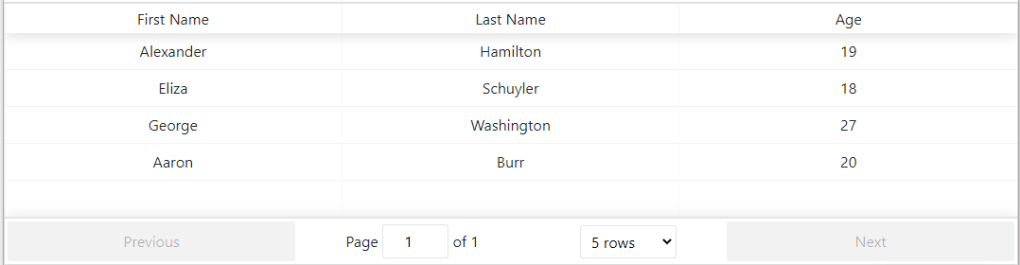
React Table v

React-table Version i Am Use : "react-table": "^6.10.0",
import React, {Component} from 'react';
import ReactTable from "react-table";
import 'react-table/react-table.css';

class CustomComponent extends Component {
    constructor(props) {
        super(props);

        this.state = {
            data: [
                {
                    firstName: "Alexander",
                    lastName: "Hamilton",
                    age: 19
                },
                {
                    firstName: "Eliza",
                    lastName: "Schuyler",
                    age: 18
                },
                {
                    firstName: "George",
                    lastName: "Washington",
                    age: 27
                },
                {
                    firstName: "Aaron",
                    lastName: "Burr",
                    age: 20
                }
            ]
        }
    }
    render() {
        let { data } = this.state;
        return (
            <div>
                <ReactTable
                    columns={[
                        {
                            Header: "First Name",
                            accessor: "firstName"
                        },
                        {
                            Header: "Last Name",
                            id: "lastName",
                            accessor: d => d.lastName
                        },
                        {
                            Header: "Age",
                            accessor: "age"
                        }
                    ]}
                    data={data}
                />
            </div>
        );
    }
}

export default CustomComponent;

React-Table Axios Server Render

import React, {Component} from 'react';
import ReactTable from "react-table";
import 'react-table/react-table.css';
import axios from 'axios';

class CustomComponent extends Component {
    constructor(props) {
        super(props);

        this.state = {
            data: []
        }

    }
    componentDidMount() {
        axios.get('https://restcountries.eu/rest/v2/lang/es').then(response => {
this.setState({data:response.data})
        } ).catch(error => {
            alert("Something Went Wrong");
        })
    }

    render() {

        let tableData = this.state.data;
        const col = [{Header:"Name",accessor:"name"},{Header:"Capital",accessor:"capital"}];
        return (
            <div>
                <ReactTable
                    columns={col}
                    data={tableData}
                    defaultPageSize={5}
                    pageSizeOptions={[2,3,5,7]}
                />
            </div>
        );
    }
}

export default CustomComponent;

React-Table Onclick Show Row Data

import React, {Component} from 'react';
import reacttable from 'react-table-6';
import 'react-table-6/react-table.css';
import ReactTable from "react-table-6";

class MyTable extends Component {

    render() {
        const data = [{'name':'ahmmed'}];
        const column = [{header:"Name",accessor:"name" }];


        return (
            <div>
                <ReactTable data={data} columns={column}
                            getTdProps={(state, rowInfo, column, instance) => {
                                // rowInfo contains a lot of information about the row (including index on both the
                                // page and it's index within the data set), the rowInfo.original objet contains
                                // values in the cells of the row clicked.
                                return {
                                    // You can define an onClick function here that will apply to all rows
                                    onClick: (e, handleOriginal) => {
                                        const rowData = rowInfo.original;
                                        // You can interact with the row data here, to use it however you want
                                        this.setState({name: rowData.name})
                                        console.log(rowData);
                                    }
                                }
                            }}

                ></ReactTable>
            </div>
        );
    }
}

export default MyTable;

SLider Link

Curreculam Vitae And Biodata

cv resume folder

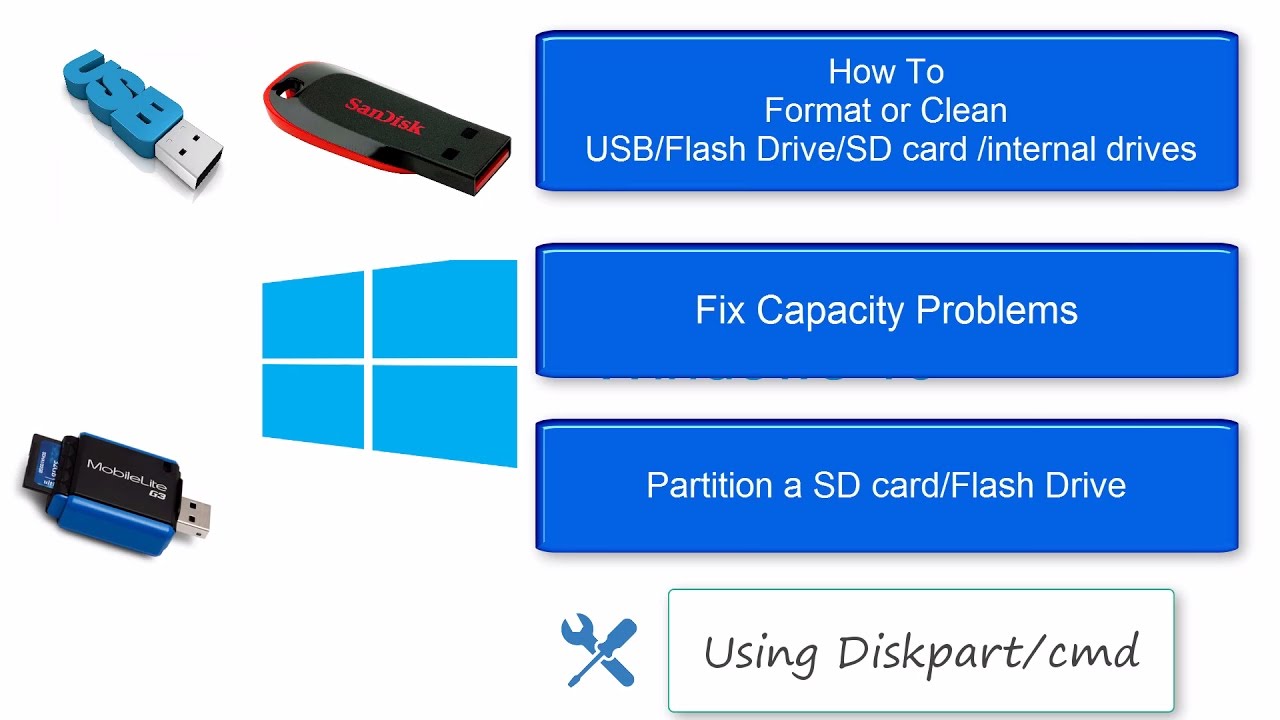
Using Diskpart repair hdd,sdd,ssd pendrive format solution

  • First Open Cmd With Administrator
  • type diskpart
  • type list disk now show your disk list
  • type select disk 1 . if your disk is 1 or another change 1 to another
  • type clean.
  • then go to drive manager and allocatedthe drive by new formar partition

Web Designer Component Need To Know For Development

For Idea Go To Freefronted Bootstrapsnippet Codepen.o

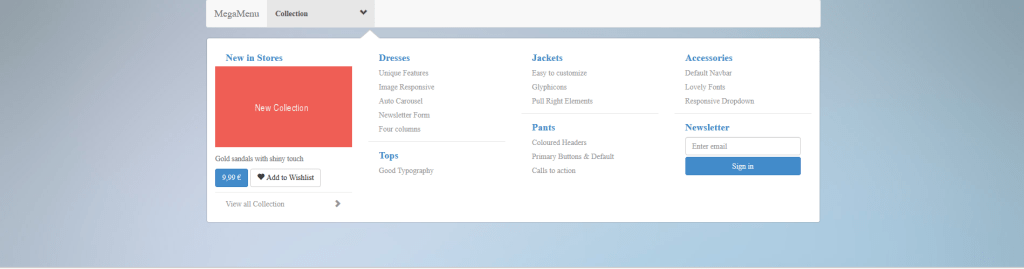
Mega Menu

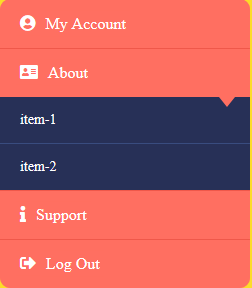
Accordion Menu

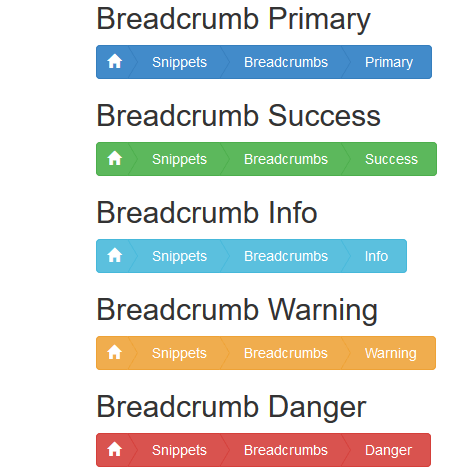
Breadcrumbs

Border Animation,
Link

Hover Effect,

Image Iffect,

Liquide Effect,

Text Effect,

Scroll Effect,

Ripple Effect

Parallax Effect,

Text Animation

Text Shadow

Glow Text Effect

জাভাস্ক্রিপ্ট লাইব্রেরি এর মাধ্যমে করা Qrcode জেনারেট

প্রথমে জেকোয়েরি এবং  qrcode.js  ফাইল অ্যাড করবো 
<script type="text/javascript" src="jquery.min.js"></script>
<script type="text/javascript" src="qrcode.js"></script> 
একটি ইনপুট বাক্স নেবো যেটা হতে আমরা ভ্যালু পাবো ও একটি div নেবো যাতে আমরা কোডটি শো করবো। 
<input id="text" type="text" value="http://jindo.dev.naver.com/collie" style="width:80%" /><br />
<div id="qrcode" style="width:100px; height:100px; margin-top:15px;"></div>
এরপর qrcode এর div এ qrcode শো করার কোড লিখবো 
var qrcode = new QRCode(document.getElementById("qrcode"), {
	width : 100,
	height : 100
});

এবার qrcode এর ভ্যালু পাবার জন্য আমরা নিচের ফাঙ্কশনটি লিখবো এবং যখন ইনপুট এর ভ্যালু চেঞ্জ হবে তখন কর্কোডে টি চেঞ্জ হবে। 
function makeCode () {		
	var elText = document.getElementById("text");


	qrcode.makeCode(elText.value);
}

makeCode();

$("#text").
	on("blur", function () {
		makeCode();
	}).
	on("keydown", function (e) {
		if (e.keyCode == 13) {
			makeCode();
		}
	});

কমপ্লিট html code

<!DOCTYPE html PUBLIC "-//W3C//DTD XHTML 1.0 Transitional//EN" "http://www.w3.org/TR/xhtml1/DTD/xhtml1-transitional.dtd">
<html xmlns="http://www.w3.org/1999/xhtml" xml:lang="ko" lang="ko">
<head>
<title>Cross-Browser QRCode generator for Javascript</title>
<meta http-equiv="Content-Type" content="text/html; charset=UTF-8" />
<meta name="viewport" content="width=device-width,initial-scale=1,user-scalable=no" />
<script type="text/javascript" src="jquery.min.js"></script>
<script type="text/javascript" src="qrcode.js"></script>
</head>
<body>
<input id="text" type="text" value="http://jindo.dev.naver.com/collie" style="width:80%" /><br />
<div id="qrcode" style="width:100px; height:100px; margin-top:15px;"></div>

<script type="text/javascript">
var qrcode = new QRCode(document.getElementById("qrcode"), {
	width : 100,
	height : 100
});

function makeCode () {		
	var elText = document.getElementById("text");


	qrcode.makeCode(elText.value);
}

makeCode();

$("#text").
	on("blur", function () {
		makeCode();
	}).
	on("keydown", function (e) {
		if (e.keyCode == 13) {
			makeCode();
		}
	});
</script>
</body>

qrcode.js File

var QRCode;!function(){function a(a){this.mode=c.MODE_8BIT_BYTE,this.data=a,this.parsedData=[];for(var b=[],d=0,e=this.data.length;e>d;d++){var f=this.data.charCodeAt(d);f>65536?(b[0]=240|(1835008&f)>>>18,b[1]=128|(258048&f)>>>12,b[2]=128|(4032&f)>>>6,b[3]=128|63&f):f>2048?(b[0]=224|(61440&f)>>>12,b[1]=128|(4032&f)>>>6,b[2]=128|63&f):f>128?(b[0]=192|(1984&f)>>>6,b[1]=128|63&f):b[0]=f,this.parsedData=this.parsedData.concat(b)}this.parsedData.length!=this.data.length&&(this.parsedData.unshift(191),this.parsedData.unshift(187),this.parsedData.unshift(239))}function b(a,b){this.typeNumber=a,this.errorCorrectLevel=b,this.modules=null,this.moduleCount=0,this.dataCache=null,this.dataList=[]}function i(a,b){if(void 0==a.length)throw new Error(a.length+"/"+b);for(var c=0;c<a.length&&0==a[c];)c++;this.num=new Array(a.length-c+b);for(var d=0;d<a.length-c;d++)this.num[d]=a[d+c]}function j(a,b){this.totalCount=a,this.dataCount=b}function k(){this.buffer=[],this.length=0}function m(){return"undefined"!=typeof CanvasRenderingContext2D}function n(){var a=!1,b=navigator.userAgent;return/android/i.test(b)&&(a=!0,aMat=b.toString().match(/android ([0-9]\.[0-9])/i),aMat&&aMat[1]&&(a=parseFloat(aMat[1]))),a}function r(a,b){for(var c=1,e=s(a),f=0,g=l.length;g>=f;f++){var h=0;switch(b){case d.L:h=l[f][0];break;case d.M:h=l[f][1];break;case d.Q:h=l[f][2];break;case d.H:h=l[f][3]}if(h>=e)break;c++}if(c>l.length)throw new Error("Too long data");return c}function s(a){var b=encodeURI(a).toString().replace(/\%[0-9a-fA-F]{2}/g,"a");return b.length+(b.length!=a?3:0)}a.prototype={getLength:function(){return this.parsedData.length},write:function(a){for(var b=0,c=this.parsedData.length;c>b;b++)a.put(this.parsedData[b],8)}},b.prototype={addData:function(b){var c=new a(b);this.dataList.push(c),this.dataCache=null},isDark:function(a,b){if(0>a||this.moduleCount<=a||0>b||this.moduleCount<=b)throw new Error(a+","+b);return this.modules[a][b]},getModuleCount:function(){return this.moduleCount},make:function(){this.makeImpl(!1,this.getBestMaskPattern())},makeImpl:function(a,c){this.moduleCount=4*this.typeNumber+17,this.modules=new Array(this.moduleCount);for(var d=0;d<this.moduleCount;d++){this.modules[d]=new Array(this.moduleCount);for(var e=0;e<this.moduleCount;e++)this.modules[d][e]=null}this.setupPositionProbePattern(0,0),this.setupPositionProbePattern(this.moduleCount-7,0),this.setupPositionProbePattern(0,this.moduleCount-7),this.setupPositionAdjustPattern(),this.setupTimingPattern(),this.setupTypeInfo(a,c),this.typeNumber>=7&&this.setupTypeNumber(a),null==this.dataCache&&(this.dataCache=b.createData(this.typeNumber,this.errorCorrectLevel,this.dataList)),this.mapData(this.dataCache,c)},setupPositionProbePattern:function(a,b){for(var c=-1;7>=c;c++)if(!(-1>=a+c||this.moduleCount<=a+c))for(var d=-1;7>=d;d++)-1>=b+d||this.moduleCount<=b+d||(this.modules[a+c][b+d]=c>=0&&6>=c&&(0==d||6==d)||d>=0&&6>=d&&(0==c||6==c)||c>=2&&4>=c&&d>=2&&4>=d?!0:!1)},getBestMaskPattern:function(){for(var a=0,b=0,c=0;8>c;c++){this.makeImpl(!0,c);var d=f.getLostPoint(this);(0==c||a>d)&&(a=d,b=c)}return b},createMovieClip:function(a,b,c){var d=a.createEmptyMovieClip(b,c),e=1;this.make();for(var f=0;f<this.modules.length;f++)for(var g=f*e,h=0;h<this.modules[f].length;h++){var i=h*e,j=this.modules[f][h];j&&(d.beginFill(0,100),d.moveTo(i,g),d.lineTo(i+e,g),d.lineTo(i+e,g+e),d.lineTo(i,g+e),d.endFill())}return d},setupTimingPattern:function(){for(var a=8;a<this.moduleCount-8;a++)null==this.modules[a][6]&&(this.modules[a][6]=0==a%2);for(var b=8;b<this.moduleCount-8;b++)null==this.modules[6][b]&&(this.modules[6][b]=0==b%2)},setupPositionAdjustPattern:function(){for(var a=f.getPatternPosition(this.typeNumber),b=0;b<a.length;b++)for(var c=0;c<a.length;c++){var d=a[b],e=a[c];if(null==this.modules[d][e])for(var g=-2;2>=g;g++)for(var h=-2;2>=h;h++)this.modules[d+g][e+h]=-2==g||2==g||-2==h||2==h||0==g&&0==h?!0:!1}},setupTypeNumber:function(a){for(var b=f.getBCHTypeNumber(this.typeNumber),c=0;18>c;c++){var d=!a&&1==(1&b>>c);this.modules[Math.floor(c/3)][c%3+this.moduleCount-8-3]=d}for(var c=0;18>c;c++){var d=!a&&1==(1&b>>c);this.modules[c%3+this.moduleCount-8-3][Math.floor(c/3)]=d}},setupTypeInfo:function(a,b){for(var c=this.errorCorrectLevel<<3|b,d=f.getBCHTypeInfo(c),e=0;15>e;e++){var g=!a&&1==(1&d>>e);6>e?this.modules[e][8]=g:8>e?this.modules[e+1][8]=g:this.modules[this.moduleCount-15+e][8]=g}for(var e=0;15>e;e++){var g=!a&&1==(1&d>>e);8>e?this.modules[8][this.moduleCount-e-1]=g:9>e?this.modules[8][15-e-1+1]=g:this.modules[8][15-e-1]=g}this.modules[this.moduleCount-8][8]=!a},mapData:function(a,b){for(var c=-1,d=this.moduleCount-1,e=7,g=0,h=this.moduleCount-1;h>0;h-=2)for(6==h&&h--;;){for(var i=0;2>i;i++)if(null==this.modules[d][h-i]){var j=!1;g<a.length&&(j=1==(1&a[g]>>>e));var k=f.getMask(b,d,h-i);k&&(j=!j),this.modules[d][h-i]=j,e--,-1==e&&(g++,e=7)}if(d+=c,0>d||this.moduleCount<=d){d-=c,c=-c;break}}}},b.PAD0=236,b.PAD1=17,b.createData=function(a,c,d){for(var e=j.getRSBlocks(a,c),g=new k,h=0;h<d.length;h++){var i=d[h];g.put(i.mode,4),g.put(i.getLength(),f.getLengthInBits(i.mode,a)),i.write(g)}for(var l=0,h=0;h<e.length;h++)l+=e[h].dataCount;if(g.getLengthInBits()>8*l)throw new Error("code length overflow. ("+g.getLengthInBits()+">"+8*l+")");for(g.getLengthInBits()+4<=8*l&&g.put(0,4);0!=g.getLengthInBits()%8;)g.putBit(!1);for(;;){if(g.getLengthInBits()>=8*l)break;if(g.put(b.PAD0,8),g.getLengthInBits()>=8*l)break;g.put(b.PAD1,8)}return b.createBytes(g,e)},b.createBytes=function(a,b){for(var c=0,d=0,e=0,g=new Array(b.length),h=new Array(b.length),j=0;j<b.length;j++){var k=b[j].dataCount,l=b[j].totalCount-k;d=Math.max(d,k),e=Math.max(e,l),g[j]=new Array(k);for(var m=0;m<g[j].length;m++)g[j][m]=255&a.buffer[m+c];c+=k;var n=f.getErrorCorrectPolynomial(l),o=new i(g[j],n.getLength()-1),p=o.mod(n);h[j]=new Array(n.getLength()-1);for(var m=0;m<h[j].length;m++){var q=m+p.getLength()-h[j].length;h[j][m]=q>=0?p.get(q):0}}for(var r=0,m=0;m<b.length;m++)r+=b[m].totalCount;for(var s=new Array(r),t=0,m=0;d>m;m++)for(var j=0;j<b.length;j++)m<g[j].length&&(s[t++]=g[j][m]);for(var m=0;e>m;m++)for(var j=0;j<b.length;j++)m<h[j].length&&(s[t++]=h[j][m]);return s};for(var c={MODE_NUMBER:1,MODE_ALPHA_NUM:2,MODE_8BIT_BYTE:4,MODE_KANJI:8},d={L:1,M:0,Q:3,H:2},e={PATTERN000:0,PATTERN001:1,PATTERN010:2,PATTERN011:3,PATTERN100:4,PATTERN101:5,PATTERN110:6,PATTERN111:7},f={PATTERN_POSITION_TABLE:[[],[6,18],[6,22],[6,26],[6,30],[6,34],[6,22,38],[6,24,42],[6,26,46],[6,28,50],[6,30,54],[6,32,58],[6,34,62],[6,26,46,66],[6,26,48,70],[6,26,50,74],[6,30,54,78],[6,30,56,82],[6,30,58,86],[6,34,62,90],[6,28,50,72,94],[6,26,50,74,98],[6,30,54,78,102],[6,28,54,80,106],[6,32,58,84,110],[6,30,58,86,114],[6,34,62,90,118],[6,26,50,74,98,122],[6,30,54,78,102,126],[6,26,52,78,104,130],[6,30,56,82,108,134],[6,34,60,86,112,138],[6,30,58,86,114,142],[6,34,62,90,118,146],[6,30,54,78,102,126,150],[6,24,50,76,102,128,154],[6,28,54,80,106,132,158],[6,32,58,84,110,136,162],[6,26,54,82,110,138,166],[6,30,58,86,114,142,170]],G15:1335,G18:7973,G15_MASK:21522,getBCHTypeInfo:function(a){for(var b=a<<10;f.getBCHDigit(b)-f.getBCHDigit(f.G15)>=0;)b^=f.G15<<f.getBCHDigit(b)-f.getBCHDigit(f.G15);return(a<<10|b)^f.G15_MASK},getBCHTypeNumber:function(a){for(var b=a<<12;f.getBCHDigit(b)-f.getBCHDigit(f.G18)>=0;)b^=f.G18<<f.getBCHDigit(b)-f.getBCHDigit(f.G18);return a<<12|b},getBCHDigit:function(a){for(var b=0;0!=a;)b++,a>>>=1;return b},getPatternPosition:function(a){return f.PATTERN_POSITION_TABLE[a-1]},getMask:function(a,b,c){switch(a){case e.PATTERN000:return 0==(b+c)%2;case e.PATTERN001:return 0==b%2;case e.PATTERN010:return 0==c%3;case e.PATTERN011:return 0==(b+c)%3;case e.PATTERN100:return 0==(Math.floor(b/2)+Math.floor(c/3))%2;case e.PATTERN101:return 0==b*c%2+b*c%3;case e.PATTERN110:return 0==(b*c%2+b*c%3)%2;case e.PATTERN111:return 0==(b*c%3+(b+c)%2)%2;default:throw new Error("bad maskPattern:"+a)}},getErrorCorrectPolynomial:function(a){for(var b=new i([1],0),c=0;a>c;c++)b=b.multiply(new i([1,g.gexp(c)],0));return b},getLengthInBits:function(a,b){if(b>=1&&10>b)switch(a){case c.MODE_NUMBER:return 10;case c.MODE_ALPHA_NUM:return 9;case c.MODE_8BIT_BYTE:return 8;case c.MODE_KANJI:return 8;default:throw new Error("mode:"+a)}else if(27>b)switch(a){case c.MODE_NUMBER:return 12;case c.MODE_ALPHA_NUM:return 11;case c.MODE_8BIT_BYTE:return 16;case c.MODE_KANJI:return 10;default:throw new Error("mode:"+a)}else{if(!(41>b))throw new Error("type:"+b);switch(a){case c.MODE_NUMBER:return 14;case c.MODE_ALPHA_NUM:return 13;case c.MODE_8BIT_BYTE:return 16;case c.MODE_KANJI:return 12;default:throw new Error("mode:"+a)}}},getLostPoint:function(a){for(var b=a.getModuleCount(),c=0,d=0;b>d;d++)for(var e=0;b>e;e++){for(var f=0,g=a.isDark(d,e),h=-1;1>=h;h++)if(!(0>d+h||d+h>=b))for(var i=-1;1>=i;i++)0>e+i||e+i>=b||(0!=h||0!=i)&&g==a.isDark(d+h,e+i)&&f++;f>5&&(c+=3+f-5)}for(var d=0;b-1>d;d++)for(var e=0;b-1>e;e++){var j=0;a.isDark(d,e)&&j++,a.isDark(d+1,e)&&j++,a.isDark(d,e+1)&&j++,a.isDark(d+1,e+1)&&j++,(0==j||4==j)&&(c+=3)}for(var d=0;b>d;d++)for(var e=0;b-6>e;e++)a.isDark(d,e)&&!a.isDark(d,e+1)&&a.isDark(d,e+2)&&a.isDark(d,e+3)&&a.isDark(d,e+4)&&!a.isDark(d,e+5)&&a.isDark(d,e+6)&&(c+=40);for(var e=0;b>e;e++)for(var d=0;b-6>d;d++)a.isDark(d,e)&&!a.isDark(d+1,e)&&a.isDark(d+2,e)&&a.isDark(d+3,e)&&a.isDark(d+4,e)&&!a.isDark(d+5,e)&&a.isDark(d+6,e)&&(c+=40);for(var k=0,e=0;b>e;e++)for(var d=0;b>d;d++)a.isDark(d,e)&&k++;var l=Math.abs(100*k/b/b-50)/5;return c+=10*l}},g={glog:function(a){if(1>a)throw new Error("glog("+a+")");return g.LOG_TABLE[a]},gexp:function(a){for(;0>a;)a+=255;for(;a>=256;)a-=255;return g.EXP_TABLE[a]},EXP_TABLE:new Array(256),LOG_TABLE:new Array(256)},h=0;8>h;h++)g.EXP_TABLE[h]=1<<h;for(var h=8;256>h;h++)g.EXP_TABLE[h]=g.EXP_TABLE[h-4]^g.EXP_TABLE[h-5]^g.EXP_TABLE[h-6]^g.EXP_TABLE[h-8];for(var h=0;255>h;h++)g.LOG_TABLE[g.EXP_TABLE[h]]=h;i.prototype={get:function(a){return this.num[a]},getLength:function(){return this.num.length},multiply:function(a){for(var b=new Array(this.getLength()+a.getLength()-1),c=0;c<this.getLength();c++)for(var d=0;d<a.getLength();d++)b[c+d]^=g.gexp(g.glog(this.get(c))+g.glog(a.get(d)));return new i(b,0)},mod:function(a){if(this.getLength()-a.getLength()<0)return this;for(var b=g.glog(this.get(0))-g.glog(a.get(0)),c=new Array(this.getLength()),d=0;d<this.getLength();d++)c[d]=this.get(d);for(var d=0;d<a.getLength();d++)c[d]^=g.gexp(g.glog(a.get(d))+b);return new i(c,0).mod(a)}},j.RS_BLOCK_TABLE=[[1,26,19],[1,26,16],[1,26,13],[1,26,9],[1,44,34],[1,44,28],[1,44,22],[1,44,16],[1,70,55],[1,70,44],[2,35,17],[2,35,13],[1,100,80],[2,50,32],[2,50,24],[4,25,9],[1,134,108],[2,67,43],[2,33,15,2,34,16],[2,33,11,2,34,12],[2,86,68],[4,43,27],[4,43,19],[4,43,15],[2,98,78],[4,49,31],[2,32,14,4,33,15],[4,39,13,1,40,14],[2,121,97],[2,60,38,2,61,39],[4,40,18,2,41,19],[4,40,14,2,41,15],[2,146,116],[3,58,36,2,59,37],[4,36,16,4,37,17],[4,36,12,4,37,13],[2,86,68,2,87,69],[4,69,43,1,70,44],[6,43,19,2,44,20],[6,43,15,2,44,16],[4,101,81],[1,80,50,4,81,51],[4,50,22,4,51,23],[3,36,12,8,37,13],[2,116,92,2,117,93],[6,58,36,2,59,37],[4,46,20,6,47,21],[7,42,14,4,43,15],[4,133,107],[8,59,37,1,60,38],[8,44,20,4,45,21],[12,33,11,4,34,12],[3,145,115,1,146,116],[4,64,40,5,65,41],[11,36,16,5,37,17],[11,36,12,5,37,13],[5,109,87,1,110,88],[5,65,41,5,66,42],[5,54,24,7,55,25],[11,36,12],[5,122,98,1,123,99],[7,73,45,3,74,46],[15,43,19,2,44,20],[3,45,15,13,46,16],[1,135,107,5,136,108],[10,74,46,1,75,47],[1,50,22,15,51,23],[2,42,14,17,43,15],[5,150,120,1,151,121],[9,69,43,4,70,44],[17,50,22,1,51,23],[2,42,14,19,43,15],[3,141,113,4,142,114],[3,70,44,11,71,45],[17,47,21,4,48,22],[9,39,13,16,40,14],[3,135,107,5,136,108],[3,67,41,13,68,42],[15,54,24,5,55,25],[15,43,15,10,44,16],[4,144,116,4,145,117],[17,68,42],[17,50,22,6,51,23],[19,46,16,6,47,17],[2,139,111,7,140,112],[17,74,46],[7,54,24,16,55,25],[34,37,13],[4,151,121,5,152,122],[4,75,47,14,76,48],[11,54,24,14,55,25],[16,45,15,14,46,16],[6,147,117,4,148,118],[6,73,45,14,74,46],[11,54,24,16,55,25],[30,46,16,2,47,17],[8,132,106,4,133,107],[8,75,47,13,76,48],[7,54,24,22,55,25],[22,45,15,13,46,16],[10,142,114,2,143,115],[19,74,46,4,75,47],[28,50,22,6,51,23],[33,46,16,4,47,17],[8,152,122,4,153,123],[22,73,45,3,74,46],[8,53,23,26,54,24],[12,45,15,28,46,16],[3,147,117,10,148,118],[3,73,45,23,74,46],[4,54,24,31,55,25],[11,45,15,31,46,16],[7,146,116,7,147,117],[21,73,45,7,74,46],[1,53,23,37,54,24],[19,45,15,26,46,16],[5,145,115,10,146,116],[19,75,47,10,76,48],[15,54,24,25,55,25],[23,45,15,25,46,16],[13,145,115,3,146,116],[2,74,46,29,75,47],[42,54,24,1,55,25],[23,45,15,28,46,16],[17,145,115],[10,74,46,23,75,47],[10,54,24,35,55,25],[19,45,15,35,46,16],[17,145,115,1,146,116],[14,74,46,21,75,47],[29,54,24,19,55,25],[11,45,15,46,46,16],[13,145,115,6,146,116],[14,74,46,23,75,47],[44,54,24,7,55,25],[59,46,16,1,47,17],[12,151,121,7,152,122],[12,75,47,26,76,48],[39,54,24,14,55,25],[22,45,15,41,46,16],[6,151,121,14,152,122],[6,75,47,34,76,48],[46,54,24,10,55,25],[2,45,15,64,46,16],[17,152,122,4,153,123],[29,74,46,14,75,47],[49,54,24,10,55,25],[24,45,15,46,46,16],[4,152,122,18,153,123],[13,74,46,32,75,47],[48,54,24,14,55,25],[42,45,15,32,46,16],[20,147,117,4,148,118],[40,75,47,7,76,48],[43,54,24,22,55,25],[10,45,15,67,46,16],[19,148,118,6,149,119],[18,75,47,31,76,48],[34,54,24,34,55,25],[20,45,15,61,46,16]],j.getRSBlocks=function(a,b){var c=j.getRsBlockTable(a,b);if(void 0==c)throw new Error("bad rs block @ typeNumber:"+a+"/errorCorrectLevel:"+b);for(var d=c.length/3,e=[],f=0;d>f;f++)for(var g=c[3*f+0],h=c[3*f+1],i=c[3*f+2],k=0;g>k;k++)e.push(new j(h,i));return e},j.getRsBlockTable=function(a,b){switch(b){case d.L:return j.RS_BLOCK_TABLE[4*(a-1)+0];case d.M:return j.RS_BLOCK_TABLE[4*(a-1)+1];case d.Q:return j.RS_BLOCK_TABLE[4*(a-1)+2];case d.H:return j.RS_BLOCK_TABLE[4*(a-1)+3];default:return void 0}},k.prototype={get:function(a){var b=Math.floor(a/8);return 1==(1&this.buffer[b]>>>7-a%8)},put:function(a,b){for(var c=0;b>c;c++)this.putBit(1==(1&a>>>b-c-1))},getLengthInBits:function(){return this.length},putBit:function(a){var b=Math.floor(this.length/8);this.buffer.length<=b&&this.buffer.push(0),a&&(this.buffer[b]|=128>>>this.length%8),this.length++}};var l=[[17,14,11,7],[32,26,20,14],[53,42,32,24],[78,62,46,34],[106,84,60,44],[134,106,74,58],[154,122,86,64],[192,152,108,84],[230,180,130,98],[271,213,151,119],[321,251,177,137],[367,287,203,155],[425,331,241,177],[458,362,258,194],[520,412,292,220],[586,450,322,250],[644,504,364,280],[718,560,394,310],[792,624,442,338],[858,666,482,382],[929,711,509,403],[1003,779,565,439],[1091,857,611,461],[1171,911,661,511],[1273,997,715,535],[1367,1059,751,593],[1465,1125,805,625],[1528,1190,868,658],[1628,1264,908,698],[1732,1370,982,742],[1840,1452,1030,790],[1952,1538,1112,842],[2068,1628,1168,898],[2188,1722,1228,958],[2303,1809,1283,983],[2431,1911,1351,1051],[2563,1989,1423,1093],[2699,2099,1499,1139],[2809,2213,1579,1219],[2953,2331,1663,1273]],o=function(){var a=function(a,b){this._el=a,this._htOption=b};return a.prototype.draw=function(a){function g(a,b){var c=document.createElementNS("http://www.w3.org/2000/svg",a);for(var d in b)b.hasOwnProperty(d)&&c.setAttribute(d,b[d]);return c}var b=this._htOption,c=this._el,d=a.getModuleCount();Math.floor(b.width/d),Math.floor(b.height/d),this.clear();var h=g("svg",{viewBox:"0 0 "+String(d)+" "+String(d),width:"100%",height:"100%",fill:b.colorLight});h.setAttributeNS("http://www.w3.org/2000/xmlns/","xmlns:xlink","http://www.w3.org/1999/xlink"),c.appendChild(h),h.appendChild(g("rect",{fill:b.colorDark,width:"1",height:"1",id:"template"}));for(var i=0;d>i;i++)for(var j=0;d>j;j++)if(a.isDark(i,j)){var k=g("use",{x:String(i),y:String(j)});k.setAttributeNS("http://www.w3.org/1999/xlink","href","#template"),h.appendChild(k)}},a.prototype.clear=function(){for(;this._el.hasChildNodes();)this._el.removeChild(this._el.lastChild)},a}(),p="svg"===document.documentElement.tagName.toLowerCase(),q=p?o:m()?function(){function a(){this._elImage.src=this._elCanvas.toDataURL("image/png"),this._elImage.style.display="block",this._elCanvas.style.display="none"}function d(a,b){var c=this;if(c._fFail=b,c._fSuccess=a,null===c._bSupportDataURI){var d=document.createElement("img"),e=function(){c._bSupportDataURI=!1,c._fFail&&_fFail.call(c)},f=function(){c._bSupportDataURI=!0,c._fSuccess&&c._fSuccess.call(c)};return d.onabort=e,d.onerror=e,d.onload=f,d.src="data:image/gif;base64,iVBORw0KGgoAAAANSUhEUgAAAAUAAAAFCAYAAACNbyblAAAAHElEQVQI12P4//8/w38GIAXDIBKE0DHxgljNBAAO9TXL0Y4OHwAAAABJRU5ErkJggg==",void 0}c._bSupportDataURI===!0&&c._fSuccess?c._fSuccess.call(c):c._bSupportDataURI===!1&&c._fFail&&c._fFail.call(c)}if(this._android&&this._android<=2.1){var b=1/window.devicePixelRatio,c=CanvasRenderingContext2D.prototype.drawImage;CanvasRenderingContext2D.prototype.drawImage=function(a,d,e,f,g,h,i,j){if("nodeName"in a&&/img/i.test(a.nodeName))for(var l=arguments.length-1;l>=1;l--)arguments[l]=arguments[l]*b;else"undefined"==typeof j&&(arguments[1]*=b,arguments[2]*=b,arguments[3]*=b,arguments[4]*=b);c.apply(this,arguments)}}var e=function(a,b){this._bIsPainted=!1,this._android=n(),this._htOption=b,this._elCanvas=document.createElement("canvas"),this._elCanvas.width=b.width,this._elCanvas.height=b.height,a.appendChild(this._elCanvas),this._el=a,this._oContext=this._elCanvas.getContext("2d"),this._bIsPainted=!1,this._elImage=document.createElement("img"),this._elImage.style.display="none",this._el.appendChild(this._elImage),this._bSupportDataURI=null};return e.prototype.draw=function(a){var b=this._elImage,c=this._oContext,d=this._htOption,e=a.getModuleCount(),f=d.width/e,g=d.height/e,h=Math.round(f),i=Math.round(g);b.style.display="none",this.clear();for(var j=0;e>j;j++)for(var k=0;e>k;k++){var l=a.isDark(j,k),m=k*f,n=j*g;c.strokeStyle=l?d.colorDark:d.colorLight,c.lineWidth=1,c.fillStyle=l?d.colorDark:d.colorLight,c.fillRect(m,n,f,g),c.strokeRect(Math.floor(m)+.5,Math.floor(n)+.5,h,i),c.strokeRect(Math.ceil(m)-.5,Math.ceil(n)-.5,h,i)}this._bIsPainted=!0},e.prototype.makeImage=function(){this._bIsPainted&&d.call(this,a)},e.prototype.isPainted=function(){return this._bIsPainted},e.prototype.clear=function(){this._oContext.clearRect(0,0,this._elCanvas.width,this._elCanvas.height),this._bIsPainted=!1},e.prototype.round=function(a){return a?Math.floor(1e3*a)/1e3:a},e}():function(){var a=function(a,b){this._el=a,this._htOption=b};return a.prototype.draw=function(a){for(var b=this._htOption,c=this._el,d=a.getModuleCount(),e=Math.floor(b.width/d),f=Math.floor(b.height/d),g=['<table style="border:0;border-collapse:collapse;">'],h=0;d>h;h++){g.push("<tr>");for(var i=0;d>i;i++)g.push('<td style="border:0;border-collapse:collapse;padding:0;margin:0;width:'+e+"px;height:"+f+"px;background-color:"+(a.isDark(h,i)?b.colorDark:b.colorLight)+';"></td>');g.push("</tr>")}g.push("</table>"),c.innerHTML=g.join("");var j=c.childNodes[0],k=(b.width-j.offsetWidth)/2,l=(b.height-j.offsetHeight)/2;k>0&&l>0&&(j.style.margin=l+"px "+k+"px")},a.prototype.clear=function(){this._el.innerHTML=""},a}();QRCode=function(a,b){if(this._htOption={width:256,height:256,typeNumber:4,colorDark:"#000000",colorLight:"#ffffff",correctLevel:d.H},"string"==typeof b&&(b={text:b}),b)for(var c in b)this._htOption[c]=b[c];"string"==typeof a&&(a=document.getElementById(a)),this._android=n(),this._el=a,this._oQRCode=null,this._oDrawing=new q(this._el,this._htOption),this._htOption.text&&this.makeCode(this._htOption.text)},QRCode.prototype.makeCode=function(a){this._oQRCode=new b(r(a,this._htOption.correctLevel),this._htOption.correctLevel),this._oQRCode.addData(a),this._oQRCode.make(),this._el.title=a,this._oDrawing.draw(this._oQRCode),this.makeImage()},QRCode.prototype.makeImage=function(){"function"==typeof this._oDrawing.makeImage&&(!this._android||this._android>=3)&&this._oDrawing.makeImage()},QRCode.prototype.clear=function(){this._oDrawing.clear()},QRCode.CorrectLevel=d}();

WordPress Theme Development


WordPress React Development Link

ওয়ার্ডপ্রেস থিম ডেভেলপমেন্ট :
প্রথমে থিমের টেম্পলেট ফাইল গুলো তৈরি করে
সবচেয়ে দরকারি টেম্পলেট ফাইলের নাম :
১. stylesheet (style.css )
২. functions file(functions.php )
৩. comments file (comments.php )
Some template files (index, header, footer, sidebar, single and page) .php ফাইল থিমের ডিরেক্টরিতে রাখতে হবে।

১. থিমের বর্ণনা ঠিক করা : style.css ফাইল ওপেন করে মোডিফাই করতে হবে
/*
Theme Name: customtheme
Author: Vegibit
Author URI: https://vegibit.com
Version: 1.0
*/

2 হেডার ও ফুটার ফাইল আলাদা করা: header.php footer.php
হেডার ও ফুটার ফাইল wphead ও wpfooter ফাংশন যোগ করা যাতে functions.php ফাইল কাজ করে এবং <body তে wp body ক্লাস যোগ করা

<!DOCTYPE html>
<html <?php language_attributes(); ?>>
 
<head>
    <meta charset="<?php bloginfo( 'charset' ); ?>">
    <title><?php bloginfo( 'name' ); ?></title>
	<?php wp_head() ?>
</head>
 
<body <?php body_class(); ?>>
 
<header class="site-header">
    <h1><?php bloginfo( 'name' ); ?></h1>
    <h4><?php bloginfo( 'description' ); ?></h4>
</header>

<footer class="site-footer">
    <p><?php bloginfo( 'name' ) ?></p>
</footer>
 
<?php wp_footer() ?>
</body>
</html>

header.php নিয়ে কাজ করা :

<!DOCTYPE html PUBLIC "-//W3C//DTD XHTML 1.0 Transitional//EN" 
"http://www.w3.org/TR/xhtml1/DTD/xhtml1-transitional.dtd">
<html xmlns="http://www.w3.org/1999/xhtml">
<head profile="http://gmpg.org/xfn/11">

     <title><?php bloginfo('name'); ?><?php wp_title(); ?></title>

     <meta http-equiv="Content-Type" content="<?php bloginfo('html_type'); ?>; 
     charset=<?php bloginfo('charset'); ?>" />	
     <meta name="generator" content="WordPress <?php bloginfo('version'); ?>" /> 
     <!-- leave this for stats please -->

     <link rel="stylesheet" href="<?php bloginfo('stylesheet_url'); ?>" 
     type="text/css" media="screen" />
     <link rel="alternate" type="application/rss+xml" title="RSS 2.0" 
     href="<?php bloginfo('rss2_url'); ?>" />
     <link rel="alternate" type="text/xml" title="RSS .92" 
     href="<?php bloginfo('rss_url'); ?>" />
     <link rel="alternate" type="application/atom+xml" title="Atom 0.3" 
     href="<?php bloginfo('atom_url'); ?>" />
     <link rel="pingback" href="<?php bloginfo('pingback_url'); ?>" />

     <?php wp_get_archives('type=monthly&format=link'); ?>
     <?php //comments_popup_script(); // off by default ?>
     <?php wp_head(); ?>
</head>
<body>

<div id="wrapper">

<div id="header">

<h1><a href="<?php bloginfo('url'); ?>"><?php bloginfo('name'); ?></a></h1>
<?php bloginfo('description'); ?>

</div>

Footer.php নিয়ে কাজ করা :

<div id="footer">
  <p>
Copyright 2017 <a href="<?php bloginfo('url'); ?>"><?php bloginfo('name'); ?></a>
</p>
</div>

</div></body>
</html>

sidebar.php নিয়ে কাজ করা :

functions.php ফাইল থিম সাপোর্ট ফাংশন গুলো লিখতে হবে

Functions.php তে যাও এবং কিছু  কনফিগারেশন অ্যাড করো
একটি ফাংশন তৈরি করে এবং তার মধ্যে কনফিগারেশন গুলো অ্যাড করো এবং ফাংশনটি add_action( 'after_setup_theme', ‘functionname);
যেমন
 
add_theme_support( 'automatic-feed-links' );//এই ফাংশন টা ব্যবহার করলে আরএসএস ফিড লিনক  এইচটিএমএল হেডে টাইটেলটা  অটো  যোগ  হয়ে যাবে 
add_theme_support( 'title-tag' );//এই  ফাংশন যোগ করলে এইচটিএমএল হেডে টাইটেলটা  অটো  যোগ  হয়ে যাবে
add_theme_support( 'post-thumbnails' );//এই ফাংশনটি যোগ করলে পোস্ট  এডিটর পোস্ট    থামনীলঅপশন এনাবল হবে
add_theme_support(         'html5',         array(             'comment-form',             'comment-list',             'gallery',             'caption',         )     );
add_theme_support(         'post-formats',         array(             'aside',             'image',             'video',             'quote',             'link',             'gallery',             'audio',         )     );//এই ফাংশনটি ব্যবহার মাধ্যমে পোস্ট ভিতরে কি কি ধরনের পোস্ট সাপোর্ট করবে তা দেখাবে
function themename_custom_logo_setup() {
 $defaults = array(
 'height'      => 100,
 'width'       => 400,
 'flex-height' => true,
 'flex-width'  => true,
 'header-text' => array( 'site-title', 'site-description' ),
 );
 add_theme_support( 'custom-logo', $defaults );
}
add_action( 'after_setup_theme', 'themename_custom_logo_setup' );
 
//এই ফাংশনের মধ্যে কাস্টম লোগো আপলোড অপশন তৈরি হবে ফাংশনটি টেমপ্লেটে কাজ করার জন্য এই ফাংশনটি এপ্লাই করতে হবে 
if ( function_exists( 'the_custom_logo' ) ) {the_custom_logo();}
আরো কয়েকটি   থিম সাপোর্ট দেওয়া হল
// Load regular editor styles into the new block-based editor. add_theme_support( 'editor-styles' ); // Load default block styles. add_theme_support( 'wp-block-styles' ); // Add support for responsive embeds. add_theme_support( 'responsive-embeds' );

3. পোস্ট লুপ করা :

<?php
 
get_header();
 
if ( have_posts() ) :
	while ( have_posts() ) : the_post(); ?>
 
        <h2><a href="<?php the_permalink() ?>"><?php the_title() ?></a></h2>
		<?php the_content() ?>
	
	<?php endwhile;
 
else :
	echo '<p>There are no posts!</p>';
 
endif;
 
get_footer();
 
?>   

কয়েকটি দরকারি ওয়ার্ডপ্রেস ফাংশনের নাম :
<?php echo home_url(); ?>
<?php bloginfo( ‘name’ ); ?>
<?php bloginfo( ‘description’ ); ?>

সিঙ্গেল পেজ ডেভেলপমেন্ট

<?php get_header(); ?>

<div id="container">

  <?php if(have_posts()) : ?><?php while(have_posts()) : the_post(); ?>

    <div class="post" id="post-<?php the_ID(); ?>">

      <h2><a href="<?php the_permalink(); ?>" title="<?php the_title(); ?>">
                        <?php the_title(); ?></a></h2>

      <div class="entry">

        <?php the_content(); ?>

        <p class="postmetadata">
<?php _e('Filed under:'); ?> <?php the_category(', ') ?> <?php _e('by'); ?> 
<?php  the_author(); ?><br />
<?php comments_popup_link('No Comments »', '1 Comment »', '% Comments »'); ?> 
<?php edit_post_link('Edit', ' | ', ''); ?>
        </p>

      </div>
      <div class="comments-template">
<?php comments_template(); ?>
</div>
    </div>

  <?php endwhile; ?>

    <div class="navigation">
      <?php previous_post_link('%link') ?> <?php next_post_link(' %link') ?>
    </div>

  <?php endif; ?>

</div>

<?php get_sidebar(); ?>
<?php get_footer(); ?>

Page.php নিয়ে কাজ করা :

যদি কোনো পেজ তৈরী করি তাহলে সেই পেজের কনটেন্ট কিভাবে শো করবে তা ডিফাইন করা :
<?php get_header(); ?>

<div id="box"

  <?php if(have_posts()) : ?><?php while(have_posts()) : the_post(); ?>

  <div class="post">

    <h3><a href="<?php the_permalink(); ?>"><?php the_title(); ?></a></h3>

  <div class="entry">

    <?php the_content(); ?>


  </div>
</div>

<?php endwhile; ?>
  
</div>
<?php endif; ?>

</div>

<?php get_sidebar(); ?>
<?php get_footer(); ?>

Comments.php নিয়ে কাজ করা :

<?php 
if ('comments.php' == basename($_SERVER['SCRIPT_FILENAME'])) 
die ('Please do not load this page directly. Thanks!');
if (!empty($post->post_password)) { // if there's a password
  if ($_COOKIE['wp-postpass_' . COOKIEHASH] != $post->post_password) 
{  // and it doesn't match the cookie
?>

<h2><?php _e('Password Protected'); ?></h2>
<p><?php _e('Enter the password to view comments.'); ?></p>

<?php return;
  }
}


$oddcomment = 'alt';

?>


<?php if ($comments) : ?>
  <h3 id="comments"><?php comments_number('No Responses', 'One Response', '% Responses' );?> 
        to “<?php the_title(); ?>”</h3>

<ol class="commentlist">
<?php foreach ($comments as $comment) : ?>

  <li class="<?php echo $oddcomment; ?>" id="comment-<?php comment_ID() ?>">

<div class="commentmetadata">
<strong><?php comment_author_link() ?></strong>, <?php _e('on'); ?> 
<a href="#comment-<?php comment_ID() ?>" 
title=""><?php comment_date('F jS, Y') ?> <?php _e('at');?> 
<?php comment_time() ?></a> <?php _e('Said:'); ?> 
<?php edit_comment_link('Edit Comment','',''); ?>
 		<?php if ($comment->comment_approved == '0') : ?>
    <em><?php _e('Your comment is awaiting moderation.'); ?></em>
 		<?php endif; ?>
</div>

<?php comment_text() ?>
  </li>

<?php /* Changes every other comment to a different class */
  if ('alt' == $oddcomment) $oddcomment = '';
  else $oddcomment = 'alt';
?>

<?php endforeach; ?>
  </ol>

<?php else : ?>

<?php if ('open' == $post->comment_status) : ?>
  <!-- If comments are open, but there are no comments. -->
  <?php else : // comments are closed ?>

  
<p class="nocomments">Comments are closed.</p>

  <?php endif; ?>
<?php endif; ?>


<?php if ('open' == $post->comment_status) : ?>

    <h3 id="respond">Leave a Reply</h3>

<?php if ( get_option('comment_registration') && !$user_ID ) : ?>
<p>You must be <a href="<?php echo get_option('siteurl'); ?>
/wp-login.php?redirect_to=<?php the_permalink(); ?>">
logged in</a> to post a comment.</p>

<?php else : ?>

<form action="<?php echo get_option('siteurl'); ?>
/wp-comments-post.php" method="post" id="commentform">
<?php if ( $user_ID ) : ?>

<p>Logged in as <a href="<?php echo get_option('siteurl'); ?>/wp-admin/profile.php">
<?php echo $user_identity; ?></a>. <a href="<?php echo get_option('siteurl'); ?>
/wp-login.php?action=logout" 
title="Log out of this account">Logout »</a></p>

<?php else : ?>

<p><input type="text" name="author" id="author" value="<?php echo $comment_author; ?>" 
size="40" tabindex="1" />
<label for="author"><small>Name <?php if ($req) echo "(required)"; ?></small></label></p>

<p><input type="text" name="email" id="email" value="<?php echo $comment_author_email; ?>" 
size="40" tabindex="2" />
<label for="email"><small>Mail (will not be published) <?php if ($req) echo "(required)"; ?>
</small></label></p>

<p><input type="text" name="url" id="url" value="<?php echo $comment_author_url; ?>" 
size="40" tabindex="3" />
<label for="url"><small>Website</small></label></p>

<?php endif; ?>

<!--<p><small><strong>XHTML:</strong> <?php _e('You can use these tags:'); ?> 
<?php echo allowed_tags(); ?></small></p>-->

<p><textarea name="comment" id="comment" cols="60" rows="10" tabindex="4"></textarea></p>

<p><input name="submit" type="submit" id="submit" tabindex="5" value="Submit Comment" />
<input type="hidden" name="comment_post_ID" value="<?php echo $id; ?>" />
</p>

<?php do_action('comment_form', $post->ID); ?>

</form>

<?php endif; ?>

<?php endif; ?>

ওয়ার্ডপ্রেস উইজেট যোগ করা :
প্রথমে functions.php তে নিচের ফাঙ্কশন লিখলে ওয়ার্ডপ্রেস এর ড্যাশবোর্ড এর মেনু তে widget নাম অপসন এড হবে এবং উইডগেট এর মেনু শো করবে

function wpblog_widget()
{
    register_sidebar(array(
        'name' => __('Primary Sidebar', 'wpb'),
        'id' => 'primary_sidebar', // unique-sidebar-id
        'description' => '',
        'class' => '',
        'before_widget' => '<li id="%1$s" class="widget %2$s">',
        'after_widget' => '</li>',
        'before_title' => '<h2 class="widgettitle">',
        'after_title' => '</h2>',
    ));

}

add_action('widgets_init', 'wpblog_widget');

এবার যেখানে উইডগেট শো করতে হবে সেই টেম্পলেট ফাইল এ নিচের কোড লিখতে হবে

<?php dynamic_sidebar( 'Primary Sidebar' ); ?>

ওয়ার্ডপ্রেস এ কিভাবে মেনু যোগ করবো :


প্রথমে functions.php ফাইল এ ফাঙ্কশন লিখবো তারপর টেম্পলেট ফাইল এ তা শো করবো

ওয়ার্ডপ্রেস সাইটে মেনু কিভাবে অ্যাড করব   থিমের মধ্যে মনে করো তোমার থিমে দুইটি মেনু আছে একটি উপরে  মেইন মেনু এবং নিচের   ফুটার মেনু তাহলে প্রথমে functions.php  তে মেনু গুলো রেজিস্টার করতে হবে  এভাবে 
 
 add_action('init', 'register_menu');//ওখানে প্রাইমারি মেনু নামে একটি মেনু রেজিস্টার করেছি এটাতে দুইটা প্যারামিটার আছে  প্রথম প্যারামিটারে মেনু লোকেশন  দ্বিতীয়  প্যারামিটার  ড্যাশবোর্ডে কি নামে শো করবে সেই নাম
 একের অধিক মেনু রেজিস্টার করতে হলে এভাবে করতে হবে 
 //Registering Multiple Menus
 function register_menus() {
   register_nav_menus(
     array(
      'primary-menu' =>; __( 'Primary Menu' ),
      'secondary-menu' =>; __( 'Secondary Menu' ),
      'extra-menu' =>; __( 'Extra Menu' )
    )
  );
 }
 
 add_action( 'init', 'register_menus' );
 
<?php 
  
  <?php $defaults = array(
    'theme_location'  => ,//for menu location identifier
    'menu'            => ,// menu name idendifier
    'container'       => 'div',// before ul
    'container_class' => 'menu-{menu slug}-container',//before ul class
    'container_id'    => ,//before ul id
    'menu_class'      => 'menu',// ul class
    'menu_id'         => ,// ul id
    'echo'            => true,
    'fallback_cb'     => ‘wpex_default_menu’,//if no menu default setযদি ডিফল্টকোন মেনু দিতে চাই সে ক্ষেত্রে  যেকোনো একটি ফাংশন এর নাম 
    'before'          => ,//before anchor text
    'after'           => , //after anchortext
     'items_wrap'      => '<ul id="%1$s" class="%2$s">%3$s</ul>',
 
   'link_before'     => ,
    'link_after'      => ,
    'items_wrap'      => '<ul id=\"%1$s\" class=\"%2$s\">%3$s</ul>',
    'depth'           => 0,
    'walker'          =>
);
?>
 
<?php wp_nav_menu( $defaults ); ?>
 
 যদি ফলব্যাকcb ইউজ করি সে ক্ষেত্রে আমাদের  এভাবে কাজ 
//functions.php te 
// Menu Fallback
function wpex_default_menu() {
    get_template_part( 'template-parts/default-menu.php' );
}
//default-menu.php
<ul>                  
    <li><a href="<?php echo admin_url('nav-menus.php'); ?>"><?php esc_html_e( 'Set Up Your Menu', 'text_domain' ); ?></a></li>
</ul>
 
 
?>

বুটস্ট্র্যাপ মেনু শো করানো।


প্রথমে গিটহাব হতে বুটস্টারপ navwalker ডাউনলোড করে functions.php তে অ্যাড করি এবং functions.php তে মেনু রেজিস্টার করি

 function register_navwalker(){
    require_once get_template_directory() . '/class-wp-bootstrap-navwalker.php';
  }
  add_action( 'after_setup_theme', 'register_navwalker' );


  /* Theme setup */
add_action( 'after_setup_theme', 'wpt_setup' );
if ( ! function_exists( 'wpt_setup' ) ):
    function wpt_setup() {  
        register_nav_menu( 'primary', __( 'Primary navigation', 'wptuts' ) );
    } endif;

এবার index.php বা header.php তে মেনু শো করানোর জন্য নিচের কোড অ্যাড করি

<?php 

wp_nav_menu( array(
    'menu' => 'primary',
    'depth' => 2,
    'container' => false,
    'menu_class' => 'nav',
    //Process nav menu using our custom nav walker
    'walker' => new wp_bootstrap_navwalker())
  );?>

readmore অপসন নিয়ে কাজ করা প্রথমে functions.php তে ফাঙ্কশন লিখে টেম্পলেট ফাইল এ তা শো করতে হবে :

Read-more বতন উইথ  লিমিট ফাংশন স্টার পিসিতে যোগ করো
add_filter("the_content", "break_text");
 
function limit_text($text){
 
  if(is_front_page())
  {
    $length = 250;
    if(strlen($text)<$length+10) return $text; //don't cut if too short
    $break_pos = strpos($text, ' ', $length); //find next space after desired length
    $visible = substr($text, 0, $break_pos);
    return balanceTags($visible) . "... <a href='".get_permalink()."'>read more</a>";
  }else{
    return $text;
  }
  ফাঙ্কশন ব্যবহারের উদাহরণ : 
 <?php limit_text(25); ?>

ওয়ার্ডপ্রেস এ কাস্টম পোস্ট টাইপ :

ওয়ার্ডপ্রেস এ কাস্টম পোস্ট টাইপ : আমরা ওয়ার্ডপ্রেস এ যেমন পোস্ট মেনু হতে তৈরী করি আবার পেজ মেনু হতে পেজ তৈরী তেমনি নিজেদের মতো একটি পোস্ট টাইপ তৈরী করে যেখান হতে কোয়েরি করে ডাটা শো করা যাই। যেমন আমরা একটি স্লাইডার নাম পোস্ট টাইপ তৈরী করে সেখানে পোস্ট করে সেই পোস্ট গুলো কোয়েরি করে পেজ এ স্লাইডার শো করানোর নিয়ম এর পদ্ধতি হলো কাস্টম পোস্ট টাইপ।

নিচের কোডটি functions.php তে লিখলে ড্যাশবোর্ড এ একটি movies নাম মেনু তৈরী হবে

/*
* Creating a function to create our CPT
*/
 
function custom_post_type() {
 
// Set UI labels for Custom Post Type
    $labels = array(
        'name'                => _x( 'Movies', 'Post Type General Name', 'twentytwenty' ),
        'singular_name'       => _x( 'Movie', 'Post Type Singular Name', 'twentytwenty' ),
        'menu_name'           => __( 'Movies', 'twentytwenty' ),
        'parent_item_colon'   => __( 'Parent Movie', 'twentytwenty' ),
        'all_items'           => __( 'All Movies', 'twentytwenty' ),
        'view_item'           => __( 'View Movie', 'twentytwenty' ),
        'add_new_item'        => __( 'Add New Movie', 'twentytwenty' ),
        'add_new'             => __( 'Add New', 'twentytwenty' ),
        'edit_item'           => __( 'Edit Movie', 'twentytwenty' ),
        'update_item'         => __( 'Update Movie', 'twentytwenty' ),
        'search_items'        => __( 'Search Movie', 'twentytwenty' ),
        'not_found'           => __( 'Not Found', 'twentytwenty' ),
        'not_found_in_trash'  => __( 'Not found in Trash', 'twentytwenty' ),
    );
     
// Set other options for Custom Post Type
     
    $args = array(
        'label'               => __( 'movies', 'twentytwenty' ),
        'description'         => __( 'Movie news and reviews', 'twentytwenty' ),
        'labels'              => $labels,
        // Features this CPT supports in Post Editor
        'supports'            => array( 'title', 'editor', 'excerpt', 'author', 'thumbnail', 'comments', 'revisions', 'custom-fields', ),
        // You can associate this CPT with a taxonomy or custom taxonomy. 
        'taxonomies'          => array( 'genres' ),
        /* A hierarchical CPT is like Pages and can have
        * Parent and child items. A non-hierarchical CPT
        * is like Posts.
        */ 
        'hierarchical'        => false,
        'public'              => true,
        'show_ui'             => true,
        'show_in_menu'        => true,
        'show_in_nav_menus'   => true,
        'show_in_admin_bar'   => true,
        'menu_position'       => 5,
        'can_export'          => true,
        'has_archive'         => true,
        'exclude_from_search' => false,
        'publicly_queryable'  => true,
        'capability_type'     => 'post',
        'show_in_rest' => true,
 
    );
     
    // Registering your Custom Post Type
    register_post_type( 'movies', $args );
 
}
 
/* Hook into the 'init' action so that the function
* Containing our post type registration is not 
* unnecessarily executed. 
*/
 
add_action( 'init', 'custom_post_type', 0 );

কাস্টম পোস্ট টাইপের পোস্ট কোয়েরি করে শো করানো :

<?php 
$args = array( 'post_type' => 'movies', 'posts_per_page' => 10 );
$the_query = new WP_Query( $args ); 
?>
<?php if ( $the_query->have_posts() ) : ?>
<?php while ( $the_query->have_posts() ) : $the_query->the_post(); ?>
<h2><?php the_title(); ?></h2>
<div class="entry-content">
<?php the_content(); ?> 
</div>
<?php wp_reset_postdata(); ?>
<?php else:  ?>
<p><?php _e( 'Sorry, no posts matched your criteria.' ); ?></p>
<?php endif; ?>

কাস্টম পোস্ট টাইপ এর সিঙ্গেল পেজ : মনেকর তোমার পোস্টটাইপের নাম মুভিস সেক্ষেত্রে তোমার কাস্টম পোস্টটাইপের সিঙ্গেল পেজের নাম হবে movies-single.php তা নাহলে রেগুলার সিঙ্গেল পেজ এ শো করবে

ওয়ার্ডপ্রেস ও ডিফল্ট ভাবে পোস্ট থাম্বনেইল শো করানো :

অনেক সময় আমরা থিম এমন ভাবে ডিজাইন করি যাতে পোস্ট থাম্বনেইল শো করানো দরকার কিন্তু আমরা পোস্ট এ থাম্বনেইল অ্যাড করিনা সেক্ষেত্রে আমাদের থিমের মদ্ধ হতে একটি পিকচার শো করতে নিচের কোডটি functions.php তে লিখবো

<?php if ( has_post_thumbnail() ) {
the_post_thumbnail();
} else { ?>
<img src="<?php bloginfo('template_directory'); ?>/images/default-image.jpg" alt="<?php the_title(); ?>" />
<?php } ?>

রিডাক্স ফ্রেমওয়ার্ক দিয়ে অপসন প্যানেল যোগ করা :


প্রথমে গিটহাব হতে রিডাক্স ফাইলটি ডাউনলোড করবো তারপর থিমের মেইন ডিরেক্টরীতে ফাইলটি রেখে functions.php ফাইল এ ফাইল টি অ্যাড করবো নিচের মতো

  // Redux Framework
  if (!class_exists('ReduxFramework') && file_exists(plugin_dir_path(__FILE__) . '/optionpanel/redux-framework.php'))
    {
    require_once ('optionpanel/redux-framework.php');
 
    }
 
if (!isset($redux_demo) && file_exists(plugin_dir_path(__FILE__) . '/optionpanel/sample/options.php'))
    {
    require_once ('optionpanel/sample/options.php');
 
    }

এবার সেকশন ও ফিল্ড অ্যাড করবো এবং থিমের মধ্যে এভাবে বেবহার করবো

    <?php 
global $redux_demo;
Redux::init('redux_demo');

?>

যেখানে অপসন এর ভ্যালু আউটপুট করবো সেখানে এভাবে কোড লিখবো

<?php echo $redux_demo['opt-text']; ?>