android gridiew example

1.1 Android Layout file – res/layout/main.xml

<?xml version="1.0" encoding="utf-8"?>
<GridView xmlns:android="http://schemas.android.com/apk/res/android"
    android:id="@+id/gridView1"
    android:numColumns="auto_fit"
    android:gravity="center"
    android:columnWidth="50dp"
    android:stretchMode="columnWidth"
    android:layout_width="fill_parent"
    android:layout_height="fill_parent" >

</GridView>

1.2 Activityjava

package com.mkyong.android;

import android.app.Activity;
import android.os.Bundle;
import android.widget.AdapterView;
import android.widget.ArrayAdapter;
import android.widget.GridView;
import android.widget.TextView;
import android.widget.Toast;
import android.view.View;
import android.widget.AdapterView.OnItemClickListener;

public class GridViewActivity extends Activity {

	GridView gridView;

	static final String[] numbers = new String[] { 
			"A", "B", "C", "D", "E",
			"F", "G", "H", "I", "J",
			"K", "L", "M", "N", "O",
			"P", "Q", "R", "S", "T",
			"U", "V", "W", "X", "Y", "Z"};

	@Override
	public void onCreate(Bundle savedInstanceState) {
		super.onCreate(savedInstanceState);

		setContentView(R.layout.main);

		gridView = (GridView) findViewById(R.id.gridView1);

		ArrayAdapter<String> adapter = new ArrayAdapter<String>(this,
				android.R.layout.simple_list_item_1, numbers);

		gridView.setAdapter(adapter);

		gridView.setOnItemClickListener(new OnItemClickListener() {
			public void onItemClick(AdapterView<?> parent, View v,
				int position, long id) {
			   Toast.makeText(getApplicationContext(),
				((TextView) v).getText(), Toast.LENGTH_SHORT).show();
			}
		});

	}

}

Android Floating Action Button

এন্ড্রোইড ফ্লোটিং অ্যাকশন বাটন হলো গোলাকার বাটন। এটা ইউজার ইন্টারফেসের উপরে অবস্থান করে এবং ক্লিক করলে কোন ইভেন্ট সংঘটিত করে। এন্ড্রোইড ফ্লোটিং অ্যাকশন বাটন 3টা সাইজ এ ডিফাইন করা যায় normal এবং mini এবং auto ।

Add Design Support Libray In app Level Gradle.build File . Then Go To Mainactivity.xml file

  <android.support.design.widget.FloatingActionButton
        android:id="@+id/fab"
        android:layout_width="wrap_content"
        android:layout_height="wrap_content"
        android:layout_gravity="bottom|end"
        android:layout_margin="16dp"
        android:src="@android:drawable/ic_dialog_email"/>

Go To MainActivity.java And Add This Line

    FloatingActionButton fab = findViewById(R.id.fab);
        fab.setOnClickListener(new View.OnClickListener() {
            @Override
            public void onClick(View view) {
                // We are showing only toast message. However, you can do anything you need.
                Toast.makeText(getApplicationContext(), "You clicked Floating Action Button", Toast.LENGTH_SHORT).show();
            }
        });

Attributes of Android Floating Action Button Widget

Some of the popular attributes of android Floating Action Button widget are –

Sr.XML AttributesDescription
1app:fabCustomSizeSets the size of the button in pixels. If set to NO_CUSTOM_SIZE, custom size will not be used and size will be calculated based on the fabSize attribute.
2app:fabSizeSets the size of the button. There are 3 options available – normal, mini and auto. normal is larger than mini. auto will choose size based on the screen size.
3app:elevationSets elevation of the button.
4app:rippleColorSets ripple colour for button
5app:useCompatPaddingSets inner padding of button on platform lollipop and after.

IMPORTANT WEBSITE FOR DESIGNER AND DEVELOPER AND PROGRAMMER

Hacking Website For Fun

http://geektyper.com/shield/

https://geekprank.com/hacker/

Android Connect With Firebase

To create a new Firebase project, follow the below mentioned steps :-  

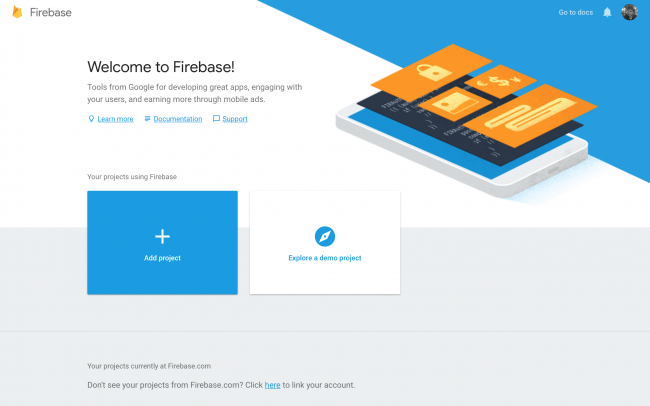
1. Open the URL – https://console.firebase.google.com

2. Then click on “Add Project”.

3. Enter the Firebase Project name and accept the conditions and then proceed with clicking on “Continue” button.

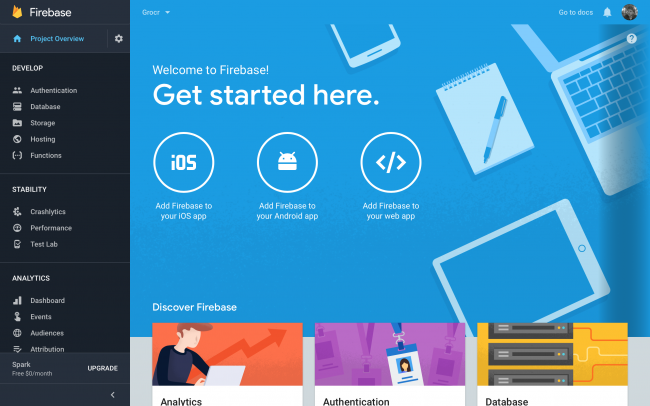
4. On the next Welcome screen, click on “Add Firebase to your Android app“. Enter the package name and click on Next.

5 . Firebase App, Register your app id and download the google-services.json file. Add it to your app folder

Specify Maven repository URL
  1. Add Google services classpath as below
  2. Add maven repository url
/ Top-level build file where you can add configuration options common to all sub-projects/modules.

buildscript {
    repositories {
        jcenter()
    }
    dependencies {
            classpath 'com.android.tools.build:gradle:3.2.1'
          classpath 'com.google.gms:google-services:4.2.0'


        // NOTE: Do not place your application dependencies here; they belong
        // in the individual module build.gradle files
    }
}

allprojects {
    repositories {
        jcenter()
        maven {
            url "https://maven.google.com" // Google's Maven repository
        }
    }
}

task clean(type: Delete) {
    delete rootProject.buildDir
}
Add Firebase Dependencies

Add them in you app level(app folder) build.gradle, then Add app lavel Dependency

    implementation 'com.google.firebase:firebase-core:16.0.9'
    implementation 'com.google.firebase:firebase-firestore:19.0.0'
    implementation 'com.google.firebase:firebase-database:17.0.0'
    implementation  'com.google.firebase:firebase-auth:17.0.0'


Add Bottom Of File App Level Dependency

apply plugin: 'com.google.gms.google-services'


Now Sync And Install and unstall App

Latest Firebase Release Note Url

Android Tabhost Example

acrtivity_main.xml

<?xml version="1.0" encoding="utf-8"?>
<android.support.constraint.ConstraintLayout xmlns:android="http://schemas.android.com/apk/res/android"
    xmlns:app="http://schemas.android.com/apk/res-auto"
    xmlns:tools="http://schemas.android.com/tools"
    android:layout_width="match_parent"
    android:layout_height="match_parent"
    tools:context=".MainActivity">
    <TabHost android:id="@+id/tabhost"
        android:layout_width="match_parent"
        android:layout_height="match_parent" >
        <LinearLayout
            android:orientation="vertical"
            android:layout_width="fill_parent"
            android:layout_height="fill_parent">
            <TabWidget android:id="@android:id/tabs"
                android:layout_width="fill_parent"
                android:layout_height="wrap_content" />
            <FrameLayout android:id="@android:id/tabcontent"
                android:layout_width="fill_parent"
                android:layout_height="fill_parent">
                <LinearLayout
                    android:id="@+id/tab1"
                    android:layout_width="match_parent"
                    android:layout_height="match_parent">
                    <Button
                        android:id="@+id/button"
                        android:layout_width="wrap_content"
                        android:layout_height="wrap_content"
                        android:text="tab1" />
                </LinearLayout>
                <LinearLayout
                    android:id="@+id/tab2"
                    android:layout_width="match_parent"
                    android:layout_height="match_parent">
                    <Button
                        android:id="@+id/button2"
                        android:layout_width="wrap_content"
                        android:layout_height="wrap_content"
                        android:text="tab2" />
                </LinearLayout>
            </FrameLayout>
        </LinearLayout>
    </TabHost>
</android.support.constraint.ConstraintLayout>

MainActivity.java

package com.example.ppc.tabhost;

import android.app.TabActivity;
import android.support.v4.app.Fragment;
import android.support.v7.app.AppCompatActivity;
import android.os.Bundle;
import android.widget.TabHost;
import android.widget.Toast;

public class MainActivity extends AppCompatActivity {
    @Override
    protected void onCreate(Bundle savedInstanceState) {
        super.onCreate(savedInstanceState);
        setContentView(R.layout.activity_main);

        TabHost tabs = (TabHost) findViewById(R.id.tabhost);
        tabs.setup();
        TabHost.TabSpec spec = tabs.newTabSpec("tag1");
        spec.setContent(R.id.tab1);
        spec.setIndicator("First");
        tabs.addTab(spec);
        spec = tabs.newTabSpec("tag2");
        spec.setContent(R.id.tab2);
        spec.setIndicator("second");
        tabs.addTab(spec);

        tabs.setOnTabChangedListener(new TabHost.OnTabChangeListener() {
            @Override
            public void onTabChanged(String tabId) {
                if (tabId.equals("tag1")){
                   Toast.makeText(getApplicationContext(),"This IS Tab One",Toast.LENGTH_LONG).show();
                }

                else if (tabId.equals("tag2")){
                    Toast.makeText(getApplicationContext(),"This IS Tab Two",Toast.LENGTH_LONG).show();
                }
            }
        });

    }
}


জাভা এক্সেপশন হ্যান্ডলিং

জাভা এক্সেপশন হ্যান্ডলিং :
প্রোগ্রামের গতিপথ নিশ্চিন্ত রাখতে যে পদ্ধতি অবলম্বন করা হয় তাই এক্সেপশন হ্যান্ডলিং।মনে কর তুমি বাসে উঠলেই বমি করো এবং যেখানে বমি স্টার্ট হয় তুমি সেখানেই বাস থেকে নেমে গন্তব্যে যাওয়া বন্ধ কর। এখানে তোমার বাসে ঊঠিলে বমি হতে ও পারে আবার নাও পারে এটা তুমি যেমন জানো তেমনি একজন প্রোগ্রামার ও জানে যে তার কোথায় কোথায় প্রোগ্রাম সমস্যা হতে পারে। যেমন তুমি জানো যে যদি বাসে ভিড় হয় অথবা অনেক গরমে তোমার বমি হতেও পারে নাও পারে ঠিক তেমনি উদহারণ স্বরূপ তুমি কোনো ইমেজ ফাইল তোমার প্রোগ্রামে কল করলে যেটা কোনো ওয়েবসাইট এ আছে এখন যদি সেই সাইটে ইমেজ ফাইলটি আগে হতে ডিলিট হয়ে থাকে তখন তোমার প্রোগ্রাম ঐজায়গায় থেমে যাবে ঠিক তোমার বমির অবস্থার নয় । তুমি যেমন জানো বমি হলেই আমি অন্য একটা বাস এ অথবা হেঁটেই গন্তব্যে যাবো অর্থাৎ তুমি থিম থাকবে না যেকোনো উপায়ে তোমার পরবর্তী গন্তব্যে যাবে ঠিক তেমনি প্রোগ্রামার কিছু উপায় তৈরী করে রাখে যেমন তার লোকাল স্টোরে একটা ফাইল রাখে অথবা অন্য কোনো টেক্সট শো করে এটাই এক্সেপশন হ্যান্ডলিং।

এক্সেপশন হ্যান্ডলিং কীওয়ার্ড সমূহ :
try {} catch (){}finnaly {}এবং throw হলো এক্সেপশন হ্যান্ডলিং কীওয়ার্ড।
যখন কোনো প্রোগ্রামে এক্সেপশন থাকার সম্ভাবনা থাকবে তখন ওই কোডগুলো try { //এখানে কোড হবে } ব্লকের মধ্যে হবে এবং একটি try ব্লক কখনো এক থাকতে পারেনা তার সাথে একটি catch (// এর মধ্যে এক্সেপশন এর ধরণ এর বর্ণনা থাকবে ){} অথবা finally {} ব্লক থাকবে। একটি try{} ব্লক এ একাধিক ধরণের এক্সেপশন থাকতে পারে যেমন একটি try {}ব্লকের মধ্যে স্ট্রিংএবং ডাটাবেস কানেকশন কোড থাকতে পারে ইউজার হয়তোবা স্ট্রিং এর জায়গায় নম্বর দিলো অথবা ডাটাবেস কানেক্ট হলোনা সেক্ষেত্রে এক্সেপশন গুলো পর্যায়ক্রমে সাজাতে পারো। এক্সেপশন এর শেষে জেনেরিক এক্সেপশন ক্যাচ ব্লক রাখলে অনেক সুবিধা যেমন তুমি একটা প্রোগ্রামে দুইটা এক্সেপশন রাখলে বাস্তবে তোমার এক্সেপশন এর বাইরেও কিছু এক্সেপশন থাকতে পারে যা তুমি গেজ করতে পারছোনা তাই তুমি catch (Exception e ){} বেবহার করবে। finally হলো ট্রাই অথবা catch যেকোনো একটার কাজ শেষ হলে finally ব্লক এর কাজ শুরু করবে। যেমন ডাটাবেস এ কানেক্ট এর চেষ্টা করলে ট্রাই ব্লকার মধ্যে এবং finnaly ব্লকের মধ্যে ডাটাবেস কানেক্ট null করার চেষ্টা করলে তখন কোড প্রথমে try ব্লক এ সাকসেস না হলে catch ব্লক এক্সেকিউট করবে এবং তার পর ফাইনালি ব্লক এর কাজ করবে। মোট কথা এক্সেপশন থাকে বা না থাক finally ব্লক try catch এর পর এক্সেকিউট হবেই যদি ফাইনালি ব্লক কল করে থাকি। একটা ট্রাই catch ব্লকের মধ্যে আরেকটি try catch ব্লক এবং এর মধ্যে আরেকটি try catch ব্লক পর্যায়ক্রমে থাকতে পারে যাকে নেস্টেড try catc বলা হয়। অনেক সময় এক্সেপশন throw করা হয় যেমন তুমি চাচ্ছ কারো বয়স ১০ এর কম হলে অথবা ওজন ২০ কেজি এর কম হলে একটি এক্সেপশন হবে তখন তুমি এক্সেপশন throw করতে পারো। যেমন if (age <১০){
throw new ArithmeticException(” কাস্টম মেসেজ “)//এক্সেপশন নেম
}

throw করতে পারো।

জাভা Constructors (কন্সট্রাক্টর)

Constructors (কন্সট্রাক্টর) কি ?
Constructors (কন্সট্রাক্টর) একটা ব্লক কোড যা দেখতে অনেকটা সাধারণ কোডব্লকের মতো তবে এর নামকরণ করা হয় ক্লাসের নামে। যদি ক্লাস এর নাম টেস্ট হয় তবে কন্সট্র্রাক্টর এর নাম হবে টেস্ট। উধারণস্বরূপ Test (){}.কন্সট্র্রাক্টর এর কাজ অবজেক্ট তৈরির পরপরই শুরু হয়ে যায়.যদি আমরা কোনো কন্সট্র্রাক্টর ডিফাইন না করি তাহলে কম্পাইলার কোড নিজে থেকেই একটি খালি কন্সট্র্রাক্টর যোগ করে তারপরে প্রোগ্রাম এর কাজ শুরু করে।কারণ কোনো ক্লাস আমরা যখন কম্পাইলার এর নিকট পাঠায় তখন কম্পাইলার প্রথমে কন্সট্রাক্টর মেথড চেক করে। যদি কনস্ট্রাক্টর মেথড ইউজার দ্বারা বানানো থাকে তখন কম্পাইলার কন্সট্রাক্টর বানানো ছাড়াই কোড রান করার চেষ্টা করে। যদি কনস্ট্রাক্টর মেথড ইউজার দ্বারা বানানো না থাকে তখন কম্পাইলার ডিফাউল্ট ভাবে একটি এম্পটি কন্সট্রাক্টর বানাই এবং তারপরে কোড রান করার চেষ্টা করে যেমন আমরা যদি এভাবে ক্লাস ডিফাইন করি এবং অবজেক্ট তৈরী করি তাহলে কম্পাইলার নিচের মতো করে কোড রান করবে।
এটা হলো আমাদের কোড
class Test {}
Test obj = new Test ();
আর কম্পাইলার রান করবে এরকম

class Test {
// ডিফল্ট কন্সট্রাক্টর যা কম্পাইলার নিজে তৈরী করে রান করেছে। কম্পাইলার তখনই নিজে থেকে কন্সট্রাক্টর তৈরী করবে যখন আমরা কোনো কন্সট্রাক্টর ক্লাসের মধ্যে কল না করি.
Test (){
}
}
Test obj = new Test ();

Constructors (কন্সট্রাক্টর) কেন তৈরী করতে হয় ?
মূলত অবজেক্ট তৈরির সাথে সাথে ডিফল্ট কিছু কার্য সম্পাদনের জন্য Constructors (কন্সট্রাক্টর) তৈরী করা হয়। যেমন কোনো মেসেজ শো করা অথবা ডিফল্ট কিছু ভ্যারিয়েবল এর ভ্যালু সেট করা অথবা ডাটাবেসের কনফিগার সেট করা অথবা অবজেক্ট তৈরির সাথে সাথে ডাটাবেস কানেকশন তৈরী করা ইত্যাদি।

Constructors (কন্সট্রাক্টর) এর প্রকারভেদঃ
১.ডিফল্ট Constructors (কন্সট্রাক্টর) . (যেটা কম্পাইলার নিজেই তৈরী করে ) .
২. নো আর্গুমেন্ট NO ARGUMENT (কন্সট্রাক্টর) . (আমরা ক্লাস এ যদি কোন Constructors কল করি এবং তার যদি কোনো আর্গুমেন্ট না থাকে অর্থাৎ empty পেরামিটার এর ফাঙ্কশন এর মত (কন্সট্রাক্টর) হয় তখন তাকে নো আর্গুমেন্ট Constructors (কন্সট্রাক্টর) বলে.যেমন public TEST (){} .

৩. Parameterized constructor বা প্যারামিটার যুক্ত কনস্ট্রাক্টর। (আমরা ক্লাস এ যদি কোন Constructors কল করি এবং তার যদি কোনো আর্গুমেন্ট থাকে তখন তাকে Parameterized constructor বা প্যারামিটার যুক্ত কনস্ট্রাক্টর বলে। যেমন public TEST (int name ){}.

Constructor (কন্সট্রাক্টর) Chaining কি ?

Constructor (কন্সট্রাক্টর) Chaining কি ?
একটা ক্লাসে একের অধিক Constructor (কন্সট্রাক্টর) থাকতে পারে অথবা আমরা প্যারামিটার এর সংখ্যা ভিন্ন করে অথবা প্যারামিটার এবং নন প্যারামিটার সহ তিনটি Constructor (কন্সট্রাক্টর) বানিয়ে রাখতে পারি। যখন একই ক্লাসের একটি Constructor (কন্সট্রাক্টর) ওই ক্লাসের আরেকটি Constructor (কন্সট্রাক্টর) কল করে তখন তাকে Constructor (কন্সট্রাক্টর) Chaining বলে।

উপরের কোডটি লক্ষ্য করলে আমরা যে ব্যাখ্যা পাই তা হলো
this (“begginerbook .com “); এখানে this এটা এই ক্লাস কে বোঝায় সুতরাং যদি এই ক্লাসের নাম Myclass হয় তবে this (“begginerbook .com “); মানে
Myclass (“begginerbook .com “); অর্থাৎ এটা এই ক্লাসের কন্সট্রাক্টর কল করেছে।

Super() কন্সট্রাক্টর

যখন আমরা কোন ক্লাস কে এক্সটেনডস করে কাজ করি তখন প্যারেন্ট ক্লাসের সকল মেথড ও প্রপার্টি ব্যবহার করতে পারি এটা আগেই জানি। মনে কর Student class কে ব্রিলিয়ান্ট ক্লাস এক্সটেনডস করেছে। ব্রিলিয়ান্ট ক্লাস এ একটা কনস্ট্রাক্টর আছে এবং Student ক্লাস এ একটা একই ধরণের কনস্ট্রাক্টর আছে। যদি ব্রিলিয়ান্ট ক্লাস এ কনস্ট্রাক্টর না থাকতো এবং আমরা কন্সট্রাক্টর কল করতাম তখন প্যারেন্ট ক্লাস বা Student ক্লাস এর কন্সট্রাক্টর কল হতো। আর যদি ব্রিলিয়ান্ট ক্লাস এ কন্সট্রাক্টর কল থাকে তাহলে ব্রিলিয়ান্ট ক্লাস এ কন্সট্রাক্টর কল হবে। যদি এমন হয় প্যারেন্ট এবং চাইল্ড দুই ক্লাস এই কন্সট্রাক্টর কল আছে এমতাবস্থায় আমরা যদি চাইল্ড ক্লাস এর অবজেক্ট তৈরী করি তাহলে ডিফল্ট ভাবে চাইল্ড ক্লাস এর কন্সট্রাক্টর কল হবে কিন্তু আমরা যদি চাই প্যারেন্ট বা বেজ ক্লাসের কন্সট্রাক্টর কল হবে তখন super () কীওয়ার্ড ব্যবহার হবে।
Share a folder, drive, or printer on the network in Windows

Verify that the sharing component is installed

To verify that File and Printer Sharing is on your computer (typically installed by default):

  1. Navigate to the Network and Sharing Center.Note:For help navigating, see Get around in Windows.
  2. Click Change adapter settings.
  3. Right-click the local connection icon and select Properties.
  4. In the area below “This connection uses the following items:”, look for File and Printer Sharing for Microsoft Networks.
    • If this component is not available:
      1. Click Install. Select Service, and then click Add….
      2. Select File and Printer Sharing for Microsoft Networks, and then click OK.
      3. Click Close. If a dialog window appears telling you to restart your computer, do so.
    • If the component is available, make sure it is checked.

Back to top

Share a folder, drive, or printer

Once File and Printer Sharing is installed, to share a folder or drive:

  1. Right-click the folder or drive you want to share.
  2. Click Properties. From the Sharing tab, click Advanced Sharing.
  3. Click Share this folder.
  4. In the appropriate fields, type the name of the share (as it appears to other computers), the maximum number of simultaneous users, and any comments that should appear beside it.
  5. If you would like to grant access to particular groups or individuals, click Permissions to add the appropriate groups or usernames.
  6. If you are using NTFS, check the permissions in the Security tab to ensure that they are properly set to allow access to the share. Because Security settings override Share permissions, it is possible for people on the Permissions list to be denied access to the share because they either are not specified or are denied specifically in the Security list.Note:FAT32 does not provide the same level of security as NTFS; if you’re using FAT32, you will not see the Security tab.
  7. Click OK.

To share a printer:

  1. From the Control Panel, open Devices and Printers.
  2. Right-click the printer you want to share. Click Printer Properties, and then select the Sharing tab.
  3. Check Share this Printer. Under Share name, select a shared name to identify the printer. Click OK.

Back to top

Access a shared folder or printer

To find and access a shared folder or printer:

  1. Search for Network, and click to open it.
  2. Select Search Active Directory at the top of the window; you may need to first select the Network tab on the upper left.
  3. From the drop-down menu next to “Find:”, select either Printers or Shared Folders.
  4. You can now enter search terms in the appropriate fields to modify the search; to start the search, click Find Now. To search for shared printers and folders that match any criteria, click Find Now without entering any search terms.
  5. You will see a list of shared printers and folders that are available on the network. Double-click the item to which you want to connect.

If you know the exact name of the computer and the share, or the exact name of the printer, you can enter it directly:

  1. Navigate to a search field. Enter two backslashes, the name of the computer, another backslash, and then the name of the share or printer. For example, if the name of the computer is bl-iub-threepio.ads.iu.edu and the name of the share is r2d2, type: \\bl-iub-threepio.ads.iu.edu\r2d2
  2. Click OK.

If you need to repeatedly access a shared folder or network drive, you can map to it. Mapping creates a persistent link to the share, allowing you to double-click its icon in My Computer whenever you want access.

Android development Time Face Error And solution

  1. Android Resource File Linking Fail . Android R.id Red Color

Solution : From Build Menu Clean Project And Rebuild Project.

2. implementation 'com.android.support:appcompat-v7:28.0.0' Red Color error.
Solution : Add below Two line After above Line or Last Line.

implementation 'com.android.support:appcompat-v7:28.0.0'
implementation 'com.android.support:support-v4:28.0.0'

3. Android Firebase Auth Gradle dependency Error
Solution : Android Firebase core And Other Libreary Version same like This Way
implementation 'com.google.firebase:firebase-core:16.0.1'
implementation 'com.google.firebase:firebase-auth:16.0.1'
implementation 'com.google.firebase:firebase-database:16.0.1'


3 . BUILD TIME UNSPECTED PROCESS ERROR

Solution : go To Project level Garadle.build And Change Your Gradle Version To If Say Any Update Dont update.
classpath 'com.android.tools.build:gradle:3.3.2'

4. Multidex Problem

 Solution : Add Dependency In App level gradle.build And Enable Multidex True in Default Config In App.build.gradle file .
 defaultConfig { 
  //...
  multiDexEnabled true 
 }
compile 'com.android.support:multidex:1.0.1' 

5.

Solution: Added two lines in gradle.properties file:
 These two lines automatically resolved my dependency conflicts between google's files and third party dependencies. Here's the link to follow: https://developer.android.com/topic/libraries/support-library/androidx-overview#new-project

android.useAndroidX=true
android.enableJetifier=true

5

ERROR: Manifest merger failed : Attribute application@appComponentFactory value=(android.support.v4.app.CoreComponentFactory) from [com.android.support:support-compat:28.0.0] AndroidManifest.xml:22:18-91
is also present at [androidx.core:core:1.0.0] AndroidManifest.xml:22:18-86 value=(androidx.core.app.CoreComponentFactory).
Suggestion: add ‘tools:replace=”android:appComponentFactory”‘ to element at AndroidManifest.xml:5:5-19:19 to override.

Solution : Goto gradle.properties file: And Write And Sync

android.useAndroidX=true
android.enableJetifier=true